21 Essential Git Commands for Software Engineers
Master 21 essential Git commands, from basic to advanced, to streamline your development workflow. Learn common mistakes and their importance for efficient version control, collaboration, and debugging.
This guide covers 21 essential Git commands, ranging from fundamental operations to more advanced techniques. Each command is crucial for any software engineer, offering insights into common pitfalls and their significance in a development workflow.
Here are the commands we'll explore:
git initgit statusgit branchgit checkoutgit diffgit diff HEADgit addgit commitgit stashgit fetchgit pullgit mergegit rebasegit pushgit taggit resetgit revertgit cherry-pickgit bisectgit loggit blame
For each command, we'll cover:
- Its purpose
- A common mistake to avoid (and how to fix it)
- Why it's important for your development process
Here are some fundamental concepts to understand before you get started:
- Working directory: Files you’re currently editing.
- Staging area: A collection of changes prepared for the next commit.
- Local repository: Full project history stored on your local machine.
- Remote repository: Shared version of the project hosted on a server, such as GitHub or GitLab.
Let's begin.
1. git init
Purpose: Create a new Git repository in the current directory.
Common mistake: Running it inside an existing repository. This can be confusing and break Git commands as it’ll create nested repositories. Always check if you’re already inside a repository using git status.
Why it matters: Git won’t track changes until you initialize a repository. It’s your first step towards version controlling your files.
Now that you’ve set up a repository, let’s check its current status before going further.
2. git status
Purpose: Display the current state of the working directory and staging area. This shows which changes are staged, unstaged, or untracked.
Common mistake: Not running it enough. This could cause some files to be overlooked or create confusion about what’s added and committed. Run it often to stay aware of the repository’s state.
Why it matters: It tells you what needs to be done—for example, what to add or commit. Plus, you can avoid surprises by viewing every change and new file.
3. git branch
Purpose: List, create, or delete branches in your repository.
Common mistake: Assuming it switches branches when you create a new one. For example, git branch new-feature creates a branch but doesn’t automatically switch to it. You stay on your current branch unless you run git checkout new-feature.
Why it matters: Branches allow you to work on various features or bug fixes without affecting the main codebase. They keep your work organized and separated, enabling safe experimentation.

4. git checkout
Purpose: Switch to a different branch, or restore files from a specific commit.
Common mistake: Switching between branches without committing or stashing your changes first. This can cause merge conflicts or prevent the switch altogether.
Why it matters: It lets you switch between branches, try out features, or view past code without losing your place. Plus, it allows you to restore specific files from an earlier commit. (In newer versions, consider git switch for clarity!)
5. git diff
Purpose: Show the difference between two versions of your files, commits, or branches.
Common mistake: Assuming it shows all changes, but it only shows unstaged ones. If you want to view staged changes as well, run git diff --staged.
Why it matters: It helps you catch mistakes and understand changes before committing or merging them.
6. git diff HEAD
Purpose: Shows the difference between the working directory and the last commit (HEAD).
Common mistake: Assuming it shows only unstaged changes compared to the last commit. It shows both staged and unstaged changes.
Summary of git diff commands:
git diff: Shows only unstaged changes.git diff --staged: Shows only staged changes.git diff HEAD: Shows everything that changed since the last commit (both staged and unstaged).
Why it matters: It ensures you don’t accidentally skip reviewing any changes before committing!
Now that you’ve reviewed the changes, the next step is to save them to the local repository.
7. git add
Purpose: Add changes from the working directory to the staging area.
Common mistake: Running git add . without checking what’s included. This might stage unwanted files or incomplete changes. Instead, you can stage specific files or lines using git add -p.
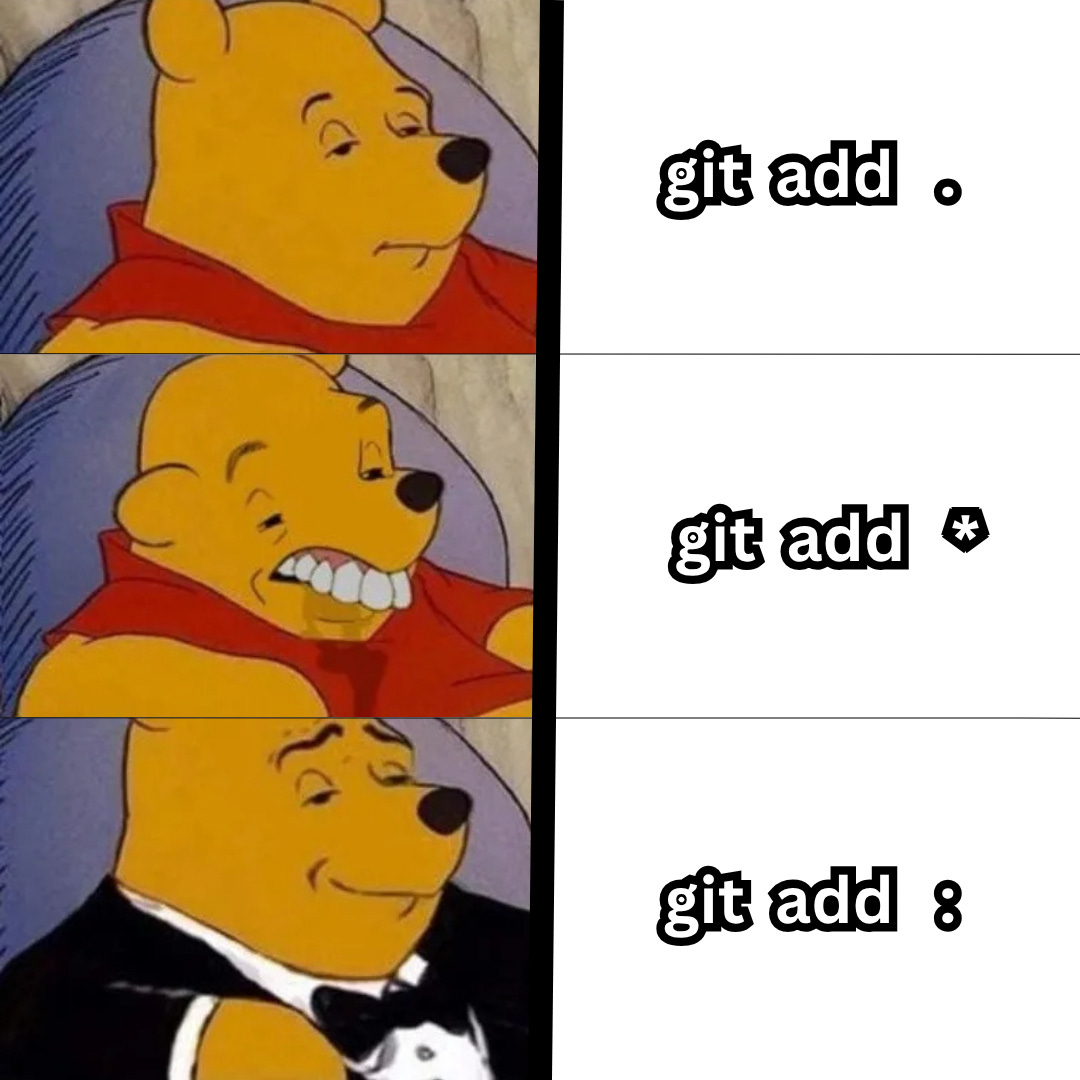
Understanding git add variations:
git add .: Adds all changes in the current directory and its sub-folders. However, if you’re in a sub-folder, it won’t include files in parent directories.git add *: Adds only non-hidden files in the current directory. For example, it skips those starting with a dot, like.envor.gitignore.git add :: Adds all changes from the repository root, including hidden files. It works from any directory in the project and is often the safest way to add everything.
Why it matters: It lets you decide what to include in the next commit. Put simply, your commit might include nothing or miss important changes if you use it incorrectly.
8. git commit
Purpose: Record staged changes in the local repository as a new snapshot.
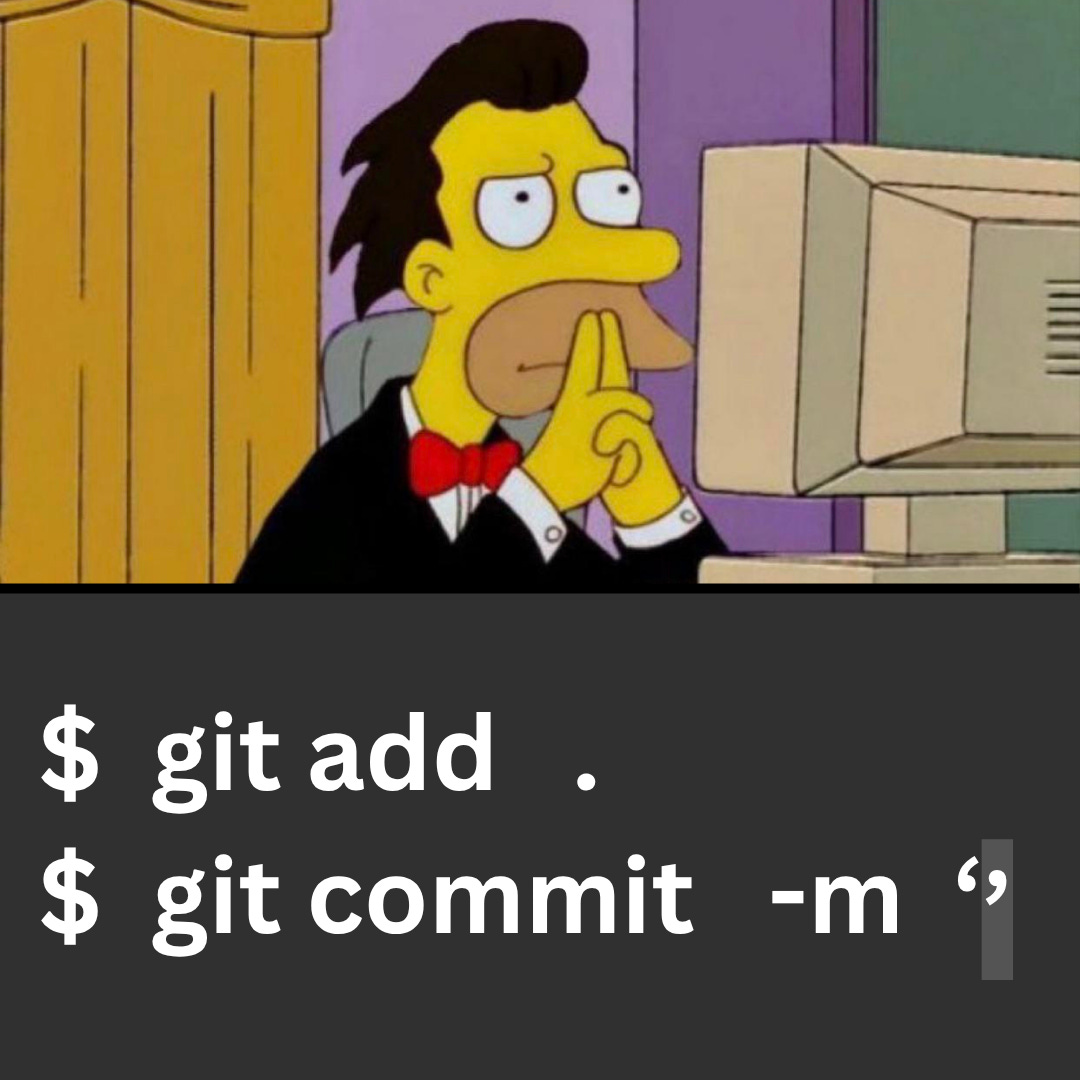
Common mistake: Committing changes:
- Without reviewing staged files.
- Without a clear, descriptive commit message.
This makes the commit history hard to understand and debug.
Why it matters: A commit is the fundamental unit of work in Git; it records what changed and why. Good commit messages make debugging, reviewing, and collaboration significantly easier.
Pro Tip: Crafting Effective Commit Messages
- Use the imperative tone: e.g., “Fix bug” instead of “Fixed bug.”
- Keep it short and specific: The subject line should be concise.
- Explain why, not just what: Provide context in the body when necessary.
If you get interrupted before committing and need to switch tasks, you can temporarily save your current work. Let’s find out how…
9. git stash
Purpose: Temporarily save uncommitted changes so you can work on something else.
Common mistake: Assuming it saves all changes, including new (untracked) files. In reality, it stashes only tracked files. If you have new files, those remain in your working directory and won’t be part of the stash. You also risk losing untracked files if you then delete or clean your workspace. If you want to stash untracked files, run git stash -u.
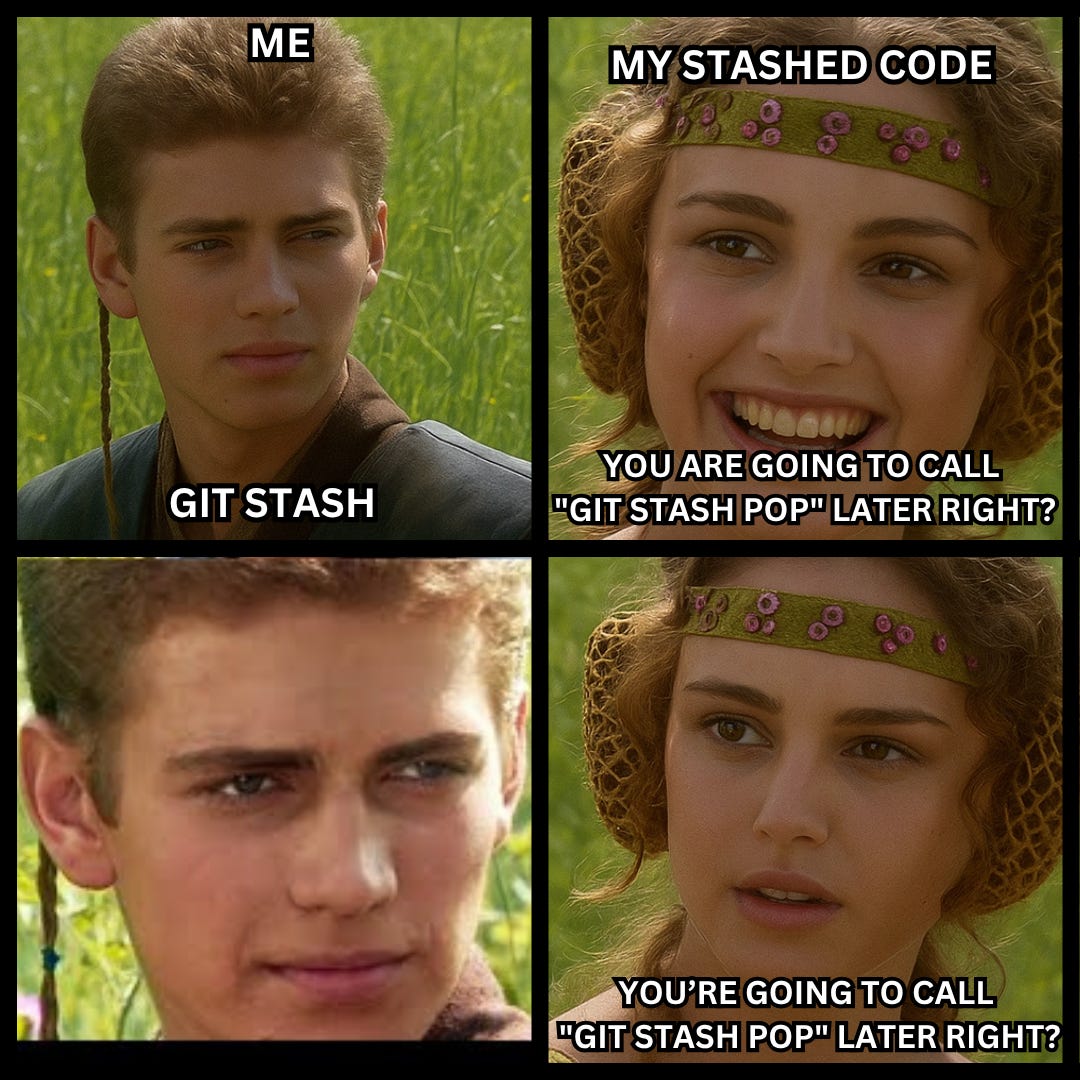
Why it matters: It lets you pause work on a feature and switch branches without losing progress. This can be handy for quickly cleaning your workspace for a code review or hotfix. You can then return later and resume where you left off. Use git stash apply to reapply your stashed changes without removing them from the stash, allowing you to reuse them if needed.
Once you’re back to working on your project, sync the changes your team made while you were busy. Let’s see how!
10. git fetch
Purpose: Download changes from a remote repository without merging them into your current code.
Common mistake: Assuming it automatically updates your branch, which it doesn’t. You still need to merge or rebase afterward.
Why it matters: It’s the safest way to review incoming changes before deciding to merge them locally.
Quick Git Actions Summary:
git fetch: Refreshes your local view of the remote repository.git pull: Downloads and integrates remote changes into your local branch.git commit: Saves your staged changes locally.git push: Uploads your local commits to the remote repository.
11. git merge
Purpose: Combine changes from one branch onto another.
Common mistake: Leaving merge conflicts unresolved. Git will prompt you to resolve conflicts manually before completing the merge. Ignoring these can create messy code and errors.

Why it matters: This command is essential for collaboration on a project, allowing team members to work in parallel and integrate their changes. Remember, a clean merge history makes tracking and debugging easier later on.
12. git pull
Purpose: Equivalent to running git fetch followed by git merge.
Common mistake: Running it without reviewing changes can create conflicts. Plus, if you pull with uncommitted changes, it can create hard-to-resolve merge conflicts or even overwrite your local changes.
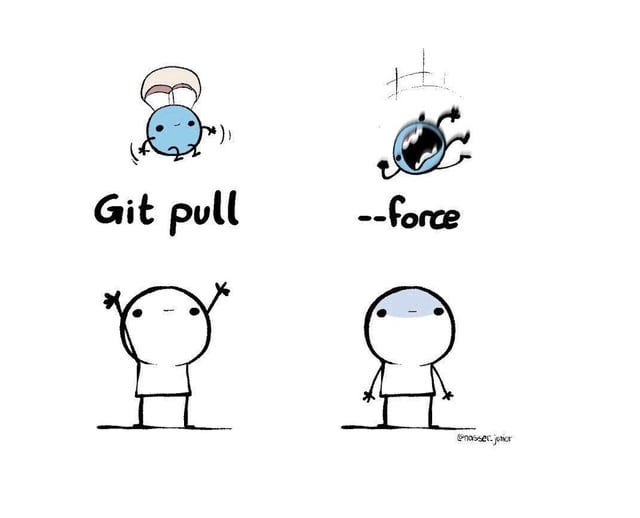
Why it matters: It keeps your branch up to date with your team’s latest work.
13. git rebase
Purpose: Re-apply commits from one branch onto another.
Common mistake: Rebasing rewrites commit history. If you rebase a public branch that others are working on, its history will no longer match theirs. This can create confusing conflicts and broken pull requests, and could result in data loss if commits are dropped accidentally during the process. If you want to clean up commit history interactively, run git rebase -i.
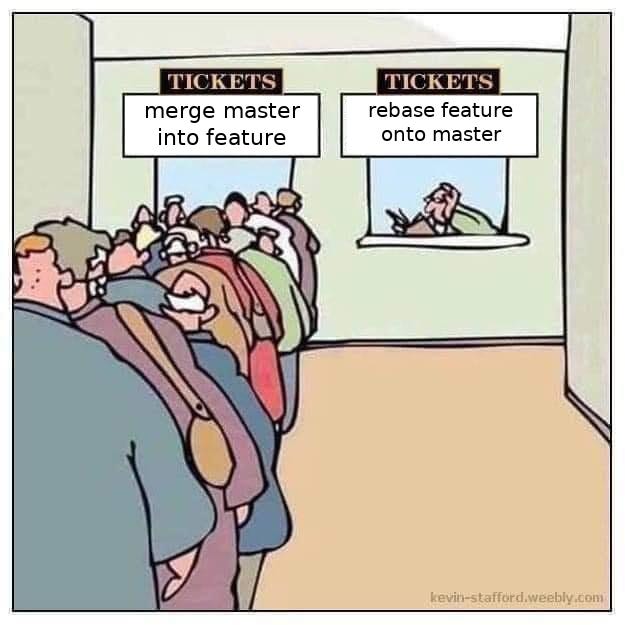
Why it matters: It avoids merge commits, allowing you to integrate updates from the main branch onto a feature branch without cluttering the history. This results in:
- A clean and linear commit history.
- Easier-to-understand branch evolution and pull requests. (A common strategy is to rebase your feature branch onto the main branch, then merge it.)
Now that your local repository is up to date with the team’s work, let’s find out how you can share your changes with others.
14. git push
Purpose: Upload commits from the local repository to a remote one.
Common mistake: Pushing without first pulling the latest changes from the remote repository. This can cause conflicts or reject the push operation altogether. Always pull and then resolve any conflicts before pushing to keep the history clean and consistent across the repository.
Why it matters: It’s how your commits become part of the shared project and keep the team aligned.
15. git tag
Purpose: Marks a specific commit with a label, often to represent a release version.
Common mistake: Forgetting to push tags to the remote. This means your team members won’t see those version labels in the repository, potentially creating confusion about releases or version tracking. After tagging, run:
# Push all tags
git push --tags

# OR

# Push a specific tag
git push origin <tag>
Always confirm your tags are on the remote if you use them for deployment or release tracking.
Why it matters: It helps you label releases and milestones in the project history, making the deployment and distribution of releases easier.
Mistakes happen. Git provides powerful commands to fix problems. Let’s see those next…
16. git reset
Purpose: Undo changes by moving the current branch to a specific commit. It also optionally updates the staging area and working directory.
Common mistake: Running it carelessly can make you lose hours of work without an easy recovery. For example, you’ll permanently lose your uncommitted changes by running git reset --hard. Instead, use these for a safer undo:
- If you want to undo a commit but keep the changes staged, run
git reset --soft. - If you want to undo a commit and move changes back to your working directory, run
git reset --mixed.
Why it matters: It lets you fix mistakes without creating new commits, giving you full control over what your branch includes.
17. git revert
Purpose: Create a new commit to reverse the changes from an earlier commit.
Common mistake: Assuming it removes a commit from history. Instead, it creates a new commit that undoes the changes of a previous one.
Key Heuristics:
- If you want to undo changes on a SHARED branch (safely), run
git revert. - If you want to remove a commit from a LOCAL branch that hasn’t been pushed yet, run
git reset.
Why it matters: Reverting is the safe way to undo a commit on a shared branch. It fixes mistakes from past commits without rewriting history. This way, everyone’s copies stay in sync, and you have a correction record.
18. git cherry-pick
Purpose: Apply a specific commit from another branch onto your current branch.
Common mistake: Cherry-picking the same commit more than once or onto the wrong branch. This can duplicate changes and create conflicts.
What you should do instead:
- Check the commit hash and current branch before cherry-picking.
- Use
git logorgit reflogto check if the commit already exists.
Why it matters: It lets you apply bug fixes or backport changes without merging the entire branch, giving you precise control over what changes move where.
Pro Tip: Recovering Lost Commits with git reflog
git reflog shows a history of all recent changes to your branches and HEAD. This includes checking out a branch, making a commit, running a reset, or using cherry-pick. Even if a commit no longer appears in git log, it’s still visible in git reflog. If you mess up a Git command (a bad reset, rebase, or checkout), git reflog lets you see where your branch or HEAD used to be. This way, you can recover lost commits by checking out or resetting to a previous state.
19. git bisect
Purpose: Find the commit that introduced a bug by binary searching through the commit history.
Common mistake: After running git bisect, Git puts you in a detached HEAD state. If you forget to reset, you may continue working without being on a real branch, which can lead to confusion or lost commits.
Why it matters: It saves you time by speeding up the debugging process. Instead of checking every commit one by one, it efficiently finds the commit that caused the bug in just a few steps.
If you want to collaborate effectively, you’ve got to better understand your project history and know who made which changes. Onward.
20. git log
Purpose: Show the commit history of the current branch.
Common mistake: Not knowing how to exit the log viewer. If you want to quit and return to the command line, press q.
Why it matters: The log is a comprehensive record of all changes; it includes information about who made which changes and when. This helps you understand the context behind a change or debug a failure.
21. git blame
Purpose: Show who last changed each line of a file and when.
Common mistake: Misusing it to point fingers can damage team trust and overlook the actual reasons behind a change. Instead, you should:
- Use it to understand code history and ask better questions.
- Combine it with
git logorgit showto understand the full context of a change. (git showdisplays the details of a specific commit, including the commit message, author, date, and the code changes.)
Remember, it’s meant to help understand code history, not to place guilt on someone.
Why it matters: It lets you figure out why a part of the code is the way it is, or find when a bug first appeared. Plus, it shows you who changed each line and which commit introduced the change, providing context and pointing you to the right person to ask about it.
Final Words
These 21 commands are the foundation of Git. Once you understand them, everything else is just a variation or combination.