Automate Docker Container Updates with dockcheck
Discover `dockcheck`, an intuitive tool for automating Docker container updates. Learn to configure dependencies, leverage command-line options, set up notifications, and use Docker Compose labels for streamlined update management across various server environments.
dockcheck originated from a simple question: "Is it possible to generate a list of Docker containers with available updates without the overhead of pulling images first?" What began as a proof of concept in January 2023 has since evolved into a robust tool, far exceeding its initial scope.
Conceived with a focus on simplicity, dockcheck was designed to be intuitive and minimal. This ensures that anyone can easily deploy and run the script without unnecessary complexities. The project's growth and enhanced adaptability are largely thanks to the community's invaluable input, ideas, suggestions, and patches.
This guide will explore the various ways to configure dockcheck and streamline your Docker container update workflow.
Getting Started
dockcheck relies on a few core dependencies. If any are missing from your system, dockcheck will often prompt you for their installation during the initial run:
- Docker (and Docker Compose)
- Bash (or a compatible shell)
- Curl
jq(installed withdockcheck's help)regctl(installed withdockcheck's help)
To install dockcheck, you can use git clone (recommended for notification features) or download it directly. Alternatively, place the dockcheck.sh file somewhere within your $PATH, such as ~/.local/bin/:
curl -L https://raw.githubusercontent.com/mag37/dockcheck/main/dockcheck.sh -o ~/.local/bin/dockcheck.sh
chmod +x ~/.local/bin/dockcheck.sh
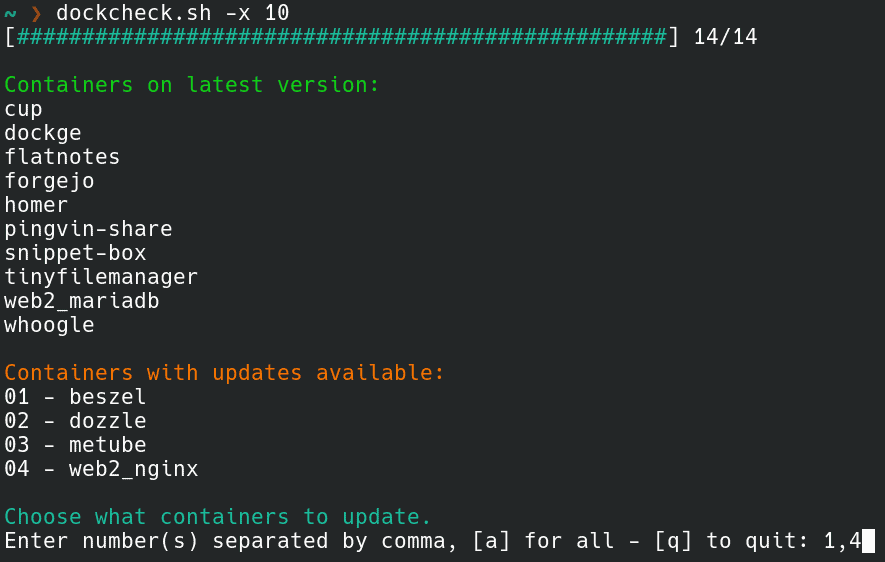
Executing dockcheck.sh will process your running containers and display a list of available updates. You'll then have options to select individual, all, or no containers for automatic updates upon pressing Enter.
For power users, dockcheck offers extensive customization through various options.
Available Options
The dockcheck.sh command supports several immediate and always-available flags:
-x N: Sets the maximum number of asynchronous (parallel) sub-processes, controlling how many simultaneous updatesdockcheckprocesses. This significantly increases check speed. Use1for default,0to disable, with32+tested for optimal performance. The example below checks ten images concurrently instead of the default one:
dockcheck.sh -x 10 ```
-aor-y: Enables automatic updates without user interaction. The script will process all available updates without pausing for selection.-n: Checks for update availability only, without performing any updates. This is the inverse of-a.-e X: Excludes specified containers (comma-separated) from the update process. For example:
dockcheck.sh -e homer,nginx ```
-i: Triggers a preconfigured notification with available updates. This is a comprehensive option requiring further configuration, detailed in the "Notifications" section.
Configuration
dockcheck can be configured using command-line flags or a dedicated configuration file. Command-line flags always take precedence over the configuration file. Certain features, such as notifications, mandate the use of the configuration file.
To set up the configuration file, copy default.config to dockcheck.config in the same directory as the main script. Then, uncomment and modify the options as needed. Alternatively, create dockcheck.config and include only the specific values you wish to override from default.config.
Example configuration entries:
Timeout=3    # Set a timeout (in seconds) per container for registry checkups.
MaxAsync=20    # Set max asynchronous subprocesses, 1 default, 0 to disable.
AutoPrune=true    # Auto-Prune dangling images after update.
Notifications
Initially, notifications were configured by modifying a template file. Recently, this system was upgraded to a wrapper script, enabling the configuration of multiple notification "channels" by triggering unmodified template scripts with predefined settings.
Notification settings are configured within the dockcheck.config file. The following example demonstrates activating both Matrix and Telegram notifications:
### Notify settings
## All commented values are examples only. Modify as needed.
##
## Uncomment the line below and specify the notification channels you wish to enable in a space separated string
NOTIFY_CHANNELS="matrix telegram"

MATRIX_ACCESS_TOKEN="AAABBBCCC123"
MATRIX_ROOM_ID="!XXXYYYYZZZ123:matrix.org"
MATRIX_SERVER_URL="https://matrix.org"

TELEGRAM_CHAT_ID="-123456789"
TELEGRAM_TOKEN="AAAABBBCCC:123-321_xyz"
TELEGRAM_TOPIC_ID="0"
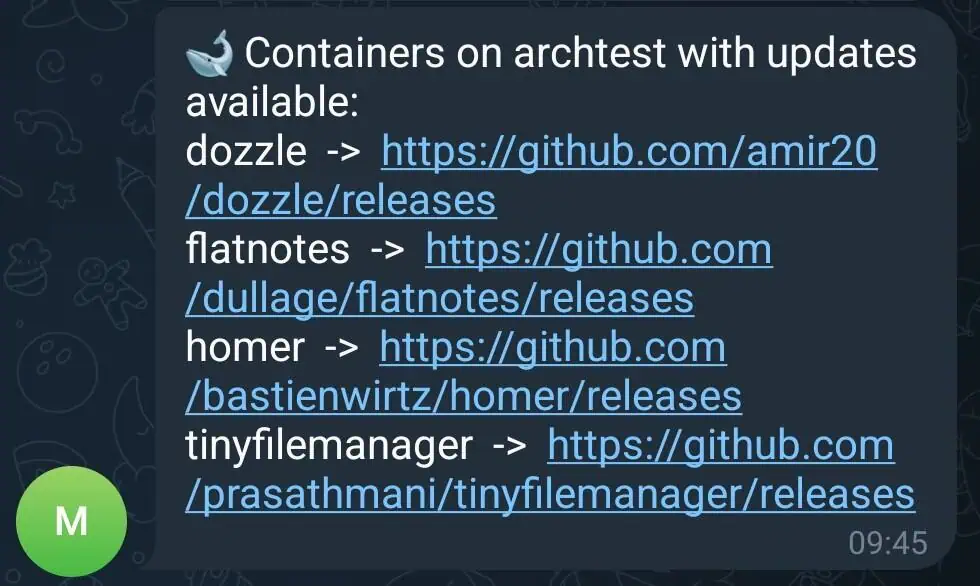
After configuration, running dockcheck.sh -n -i will perform checks and dispatch a notification to each enabled channel, listing containers with available updates. The -n flag ensures no containers are updated—it merely checks and exits—making it ideal for execution via cron jobs.
To enhance notifications with project URLs and easily readable release notes, copy or symlink the notify_templates/urls.list file alongside the main script.
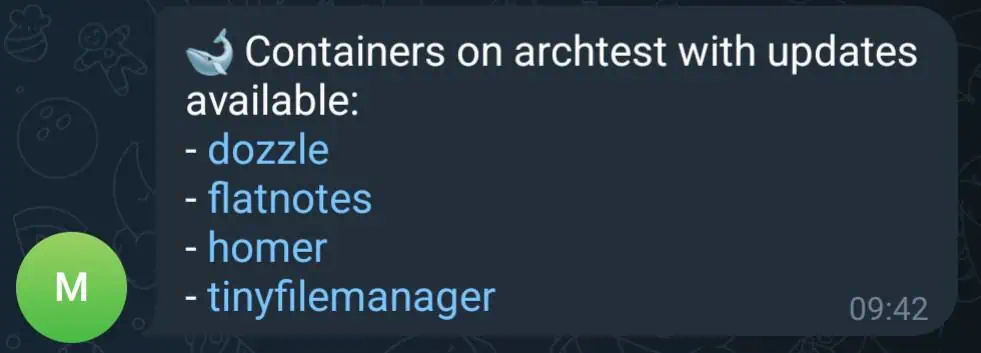
Additionally, use the -M option to format notifications using Markdown (note: not all notification services currently support this format).
Labels
dockcheck allows for fine-grained control over its workflow using Docker Compose labels:
labels:
      mag37.dockcheck.update: true
      mag37.dockcheck.only-specific-container: true
      mag37.dockcheck.restart-stack: true
mag37.dockcheck.update: Manages which containers can be updated whendockcheckis run with the-lflag.mag37.dockcheck.only-specific-container: Targets a specific container within a Docker Compose file.mag37.dockcheck.restart-stack: Restarts the entire Docker Compose stack. Use this option with caution, as it will repeat for every updated container within the stack.
Real World Examples
Consider three distinct Docker Compose deployments:
Server A: Critical Infrastructure For important infrastructure, updates are desired, but with manual control to account for potential breaking changes. A daily cron job can be set up to send a notification with a list of all containers having available updates:
0 15 * * * dockcheck.sh -ni
Server B: Web-Facing Services For simple web-facing services, the goal is to keep them as up-to-date as possible, with the exception of a specific VPN container. This scenario utilizes two cron jobs: one to auto-update all containers nightly, excluding the VPN, and another to check only the VPN container and send a notification if an update is available:
0 01 * * * dockcheck.sh -y -e vpn_123
0 15 * * * dockcheck.sh -ni vpn_123
Server C: Backup Server with Stable Containers This backup server hosts a few slow-moving containers that require high stability. A weekly cron job runs every Sunday to auto-update all containers with updates older than 5 days (allowing new releases to stabilize) and then sends a notification:
0 15 * * sun dockcheck.sh -yi -d 5
Plugins and Integrations
The dockcheck community has developed several valuable plugins and integrations, expanding its utility with other services. These contributions demonstrate the project's versatility and address diverse use cases. Further details can be found in the project's README.
- DSM: A user guide for configuring notifications on Synology DSM Container Manager GUI.
- Prometheus &
node_exporter: A plugin to output a file for the file collector, complete with examples and a reference Grafana dashboard. - Zabbix: Integrates to list the number of available Docker image updates on a host.
- REST API: A custom Python script that provides a REST API for pulling update monitoring data into other services.
- Unraid: A wrapper script for running
dockcheckas a User Script on Unraid.
Conclusion
From a simple initial inquiry, dockcheck has grown significantly, thanks to continuous community engagement. Users contribute through invaluable feedback on documentation, by suggesting new features, fixing bugs, testing releases, and helping shape the project before each update.
The project continues to evolve, with plans for a containerized version and upcoming support for image backups to facilitate easy restoration in case a new image causes issues. This ongoing journey highlights the power of community-driven development in creating and refining useful tools.