Build Production-Ready Applications with Amazon ECS Express Mode
Amazon ECS Express Mode simplifies deploying scalable, highly available containerized applications. It automates complex infrastructure setup, enabling developers to focus purely on application development with AWS best practices.
Deploying containerized applications to production often involves navigating hundreds of configuration parameters across load balancers, auto scaling policies, networking, and security groups. This overhead can significantly delay time to market and divert focus from core application development.
Amazon Web Services (AWS) introduces Amazon ECS Express Mode, a new capability within Amazon Elastic Container Service (Amazon ECS) designed to simplify the deployment of highly available, scalable containerized applications. ECS Express Mode automates extensive infrastructure setup—including domains, networking, load balancing, and auto scaling—via simplified APIs. This allows developers to focus on core application development, deploying with confidence using AWS best practices. As applications evolve and require advanced features, users can seamlessly configure and access the full capabilities of underlying Amazon ECS resources.
Users can get started with Amazon ECS Express Mode by navigating to the Amazon ECS console.

Amazon ECS Express Mode provides a simplified interface to the Amazon ECS service resource with new integrations for creating commonly used resources across AWS. ECS Express Mode automatically provisions and configures ECS clusters, task definitions, Application Load Balancers, auto scaling policies, and Amazon Route 53 domains from a single entry point.
Getting started with ECS Express Mode
This guide demonstrates how to use Amazon ECS Express Mode, focusing on the console experience for rapid deployment of containerized applications. For illustration, a simple Python Flask application container image, pushed to an Amazon Elastic Container Registry (Amazon ECR) repository, is used. The Dockerfile is as follows:
# Build stage
FROM python:3.6-slim as builder
WORKDIR /app
COPY requirements.txt .
RUN pip install --no-cache-dir --user -r requirements.txt gunicorn

# Runtime stage
FROM python:3.6-slim
WORKDIR /app
COPY --from=builder /root/.local /root/.local
COPY app.py .
ENV PATH=/root/.local/bin:$PATH
EXPOSE 80
CMD ["gunicorn", "--bind", "0.0.0.0:80", "app:app"]
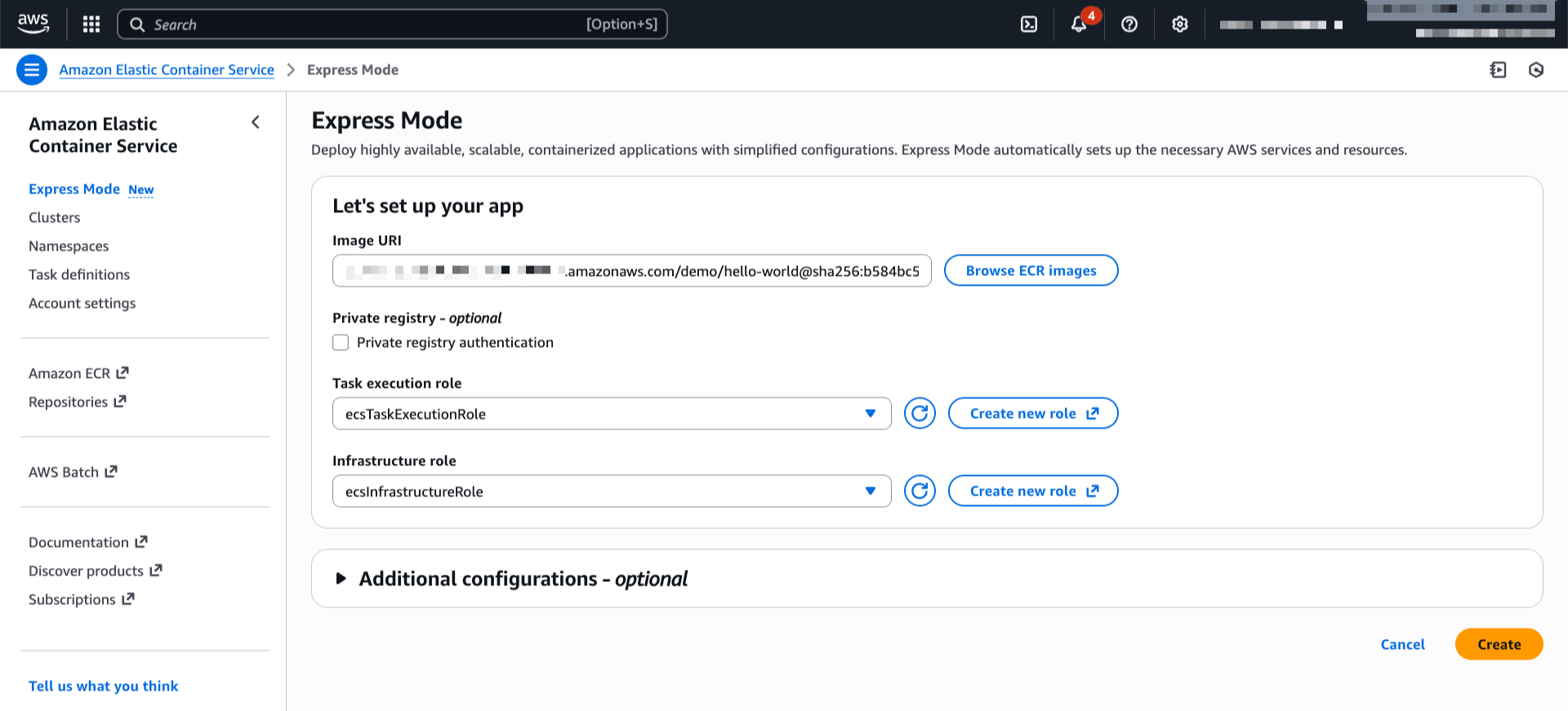
On the Express Mode page, select Create. The streamlined interface allows users to specify their container image URI from Amazon ECR, then select a task execution role and an infrastructure role. If these roles do not exist, select Create new role from the dropdown to automatically generate them based on AWS Identity and Access Management (IAM) managed policies.
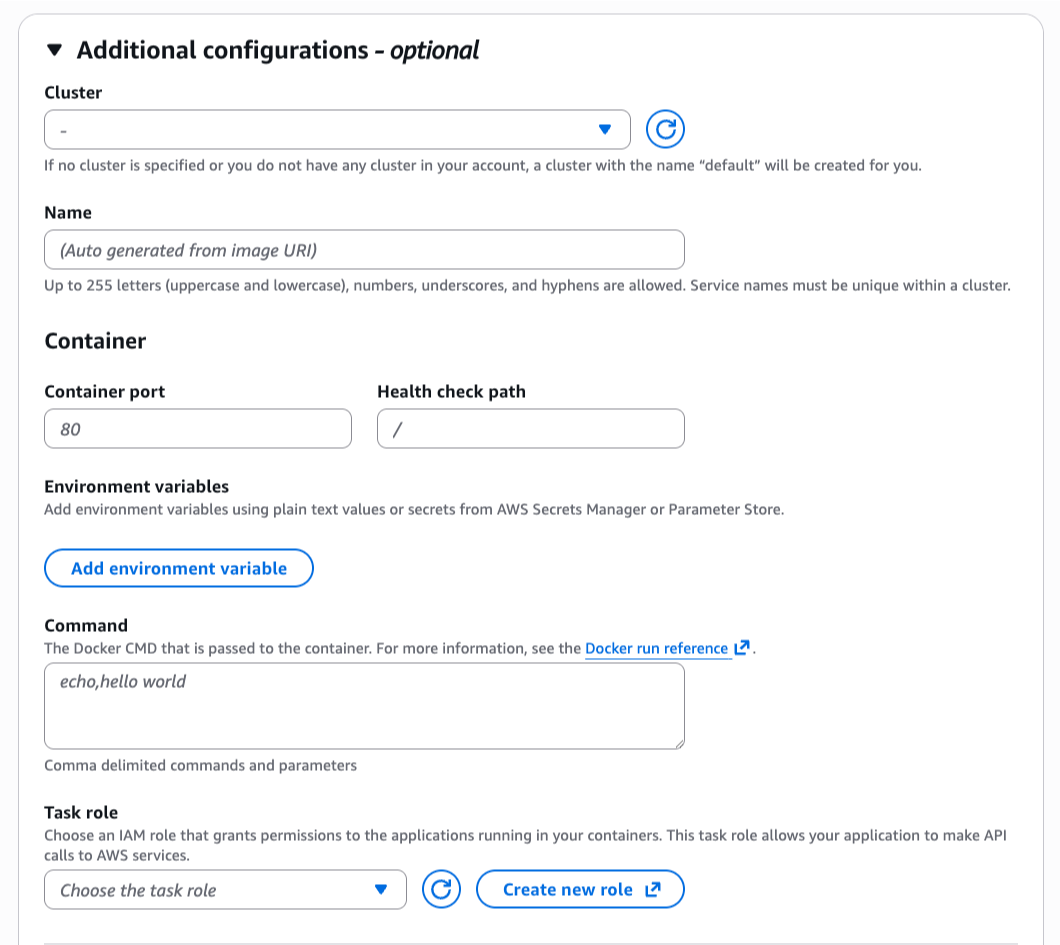
To customize the deployment, expand the Additional configurations section. Here, users can define their cluster, container port, health check path, or environment variables.
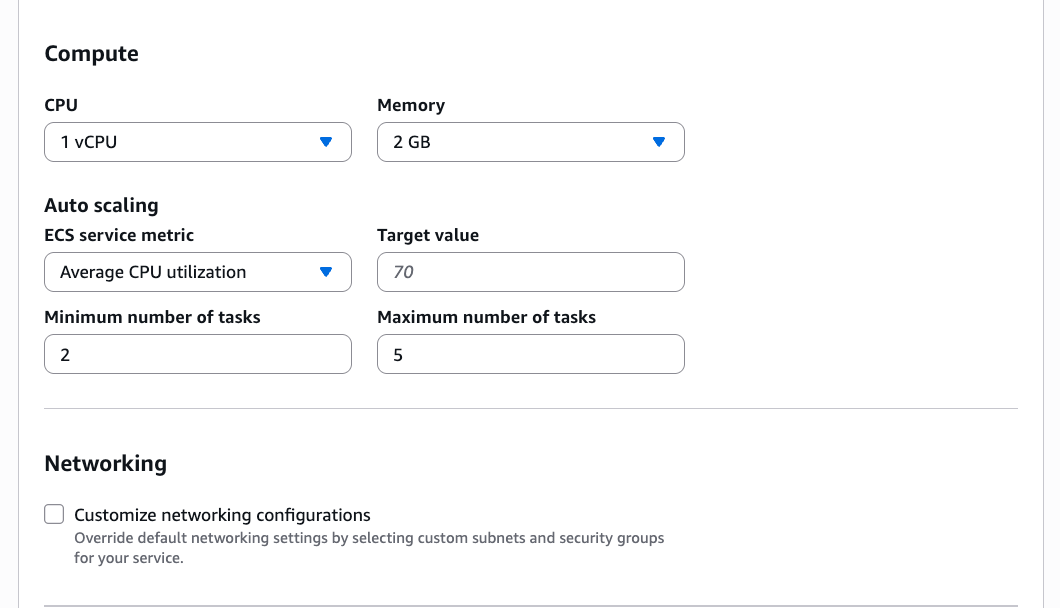
This section also allows for adjustments to CPU, memory, or scaling policies.
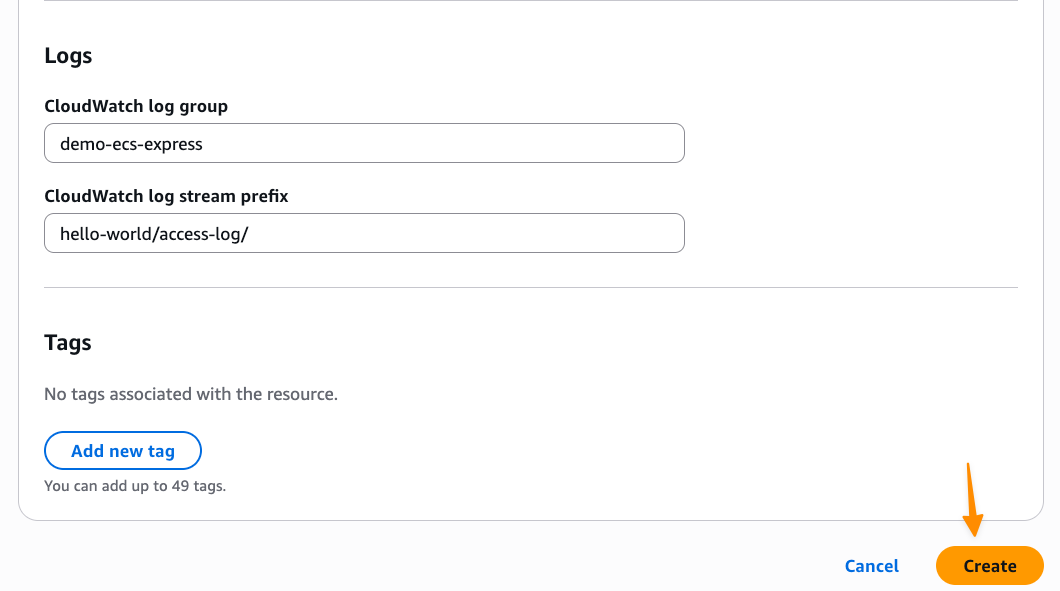
Configuring logs in Amazon CloudWatch Logs is a recommended practice for application troubleshooting. Once configurations are satisfactory, select Create.
Upon selecting Create, Express Mode automatically provisions a complete application stack. This includes an Amazon ECS service with AWS Fargate tasks, an Application Load Balancer with health checks, auto scaling policies based on CPU utilization, appropriate security groups and networking configuration, and a custom domain with an AWS-provided URL. Progress can be monitored in the Timeline view on the Resources tab.
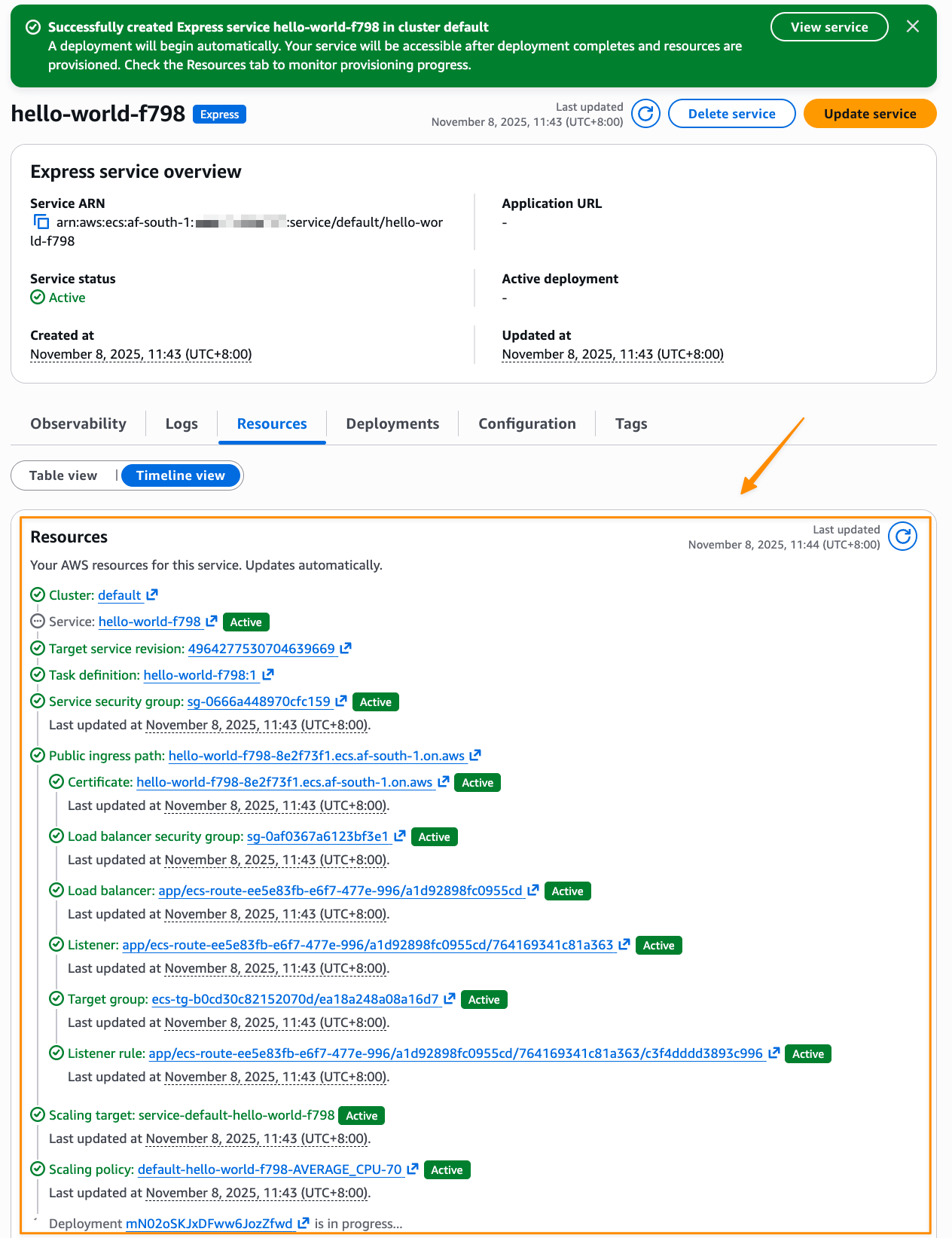
For programmatic deployments, the same outcome can be achieved using a single AWS Command Line Interface (AWS CLI) command:
aws ecs create-express-gateway-service \
--image [ACCOUNT_ID].ecr.us-west-2.amazonaws.com/myapp:latest \
--execution-role-arn arn:aws:iam::[ACCOUNT_ID]:role/[IAM_ROLE] \
--infrastructure-role-arn arn:aws:iam::[ACCOUNT_ID]:role/[IAM_ROLE]
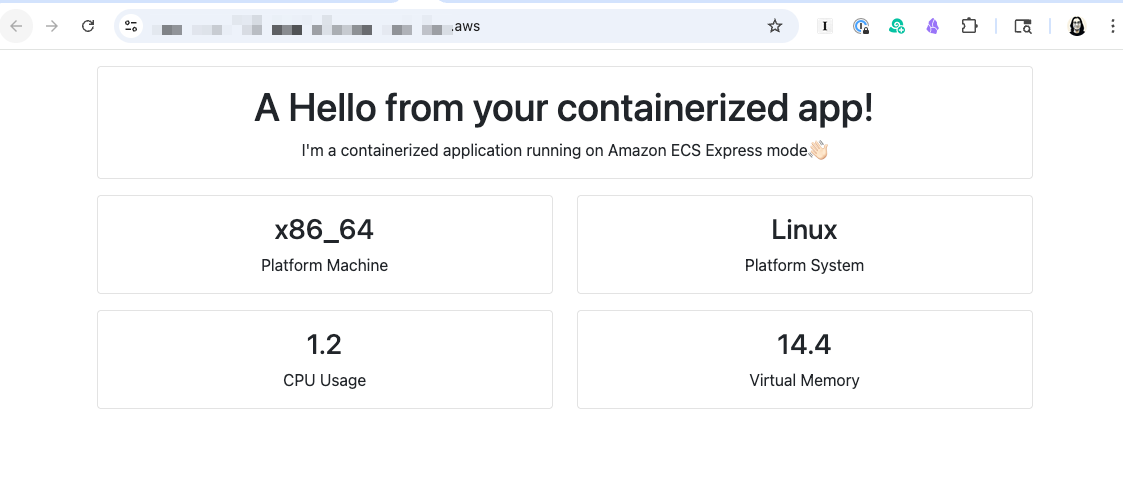
Once deployment is complete, the application URL will be visible in the console, allowing immediate access to the running application.
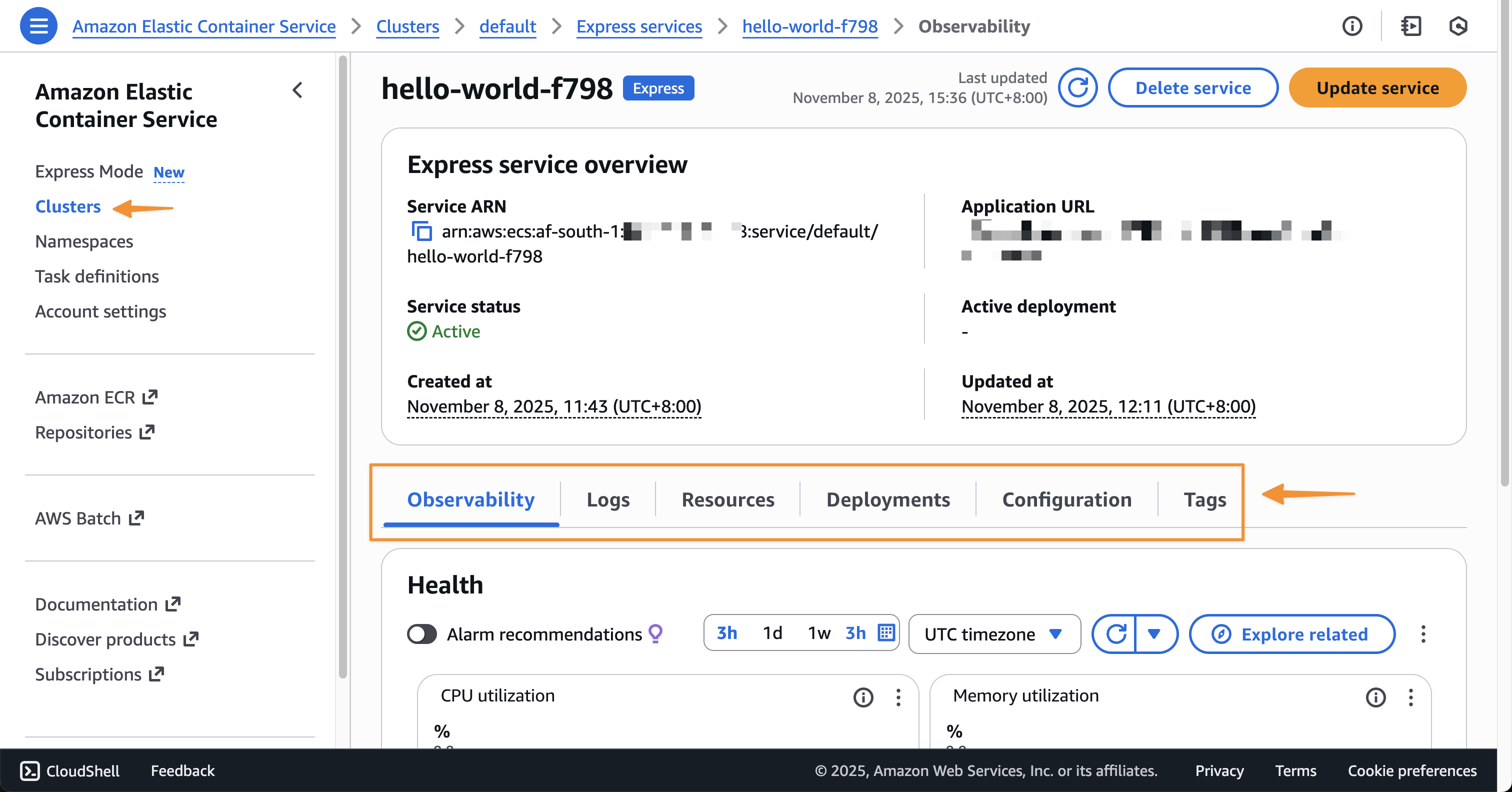
After application creation, details can be viewed by visiting the specified (or default) cluster within the ECS service, enabling performance monitoring, log viewing, and deployment management.
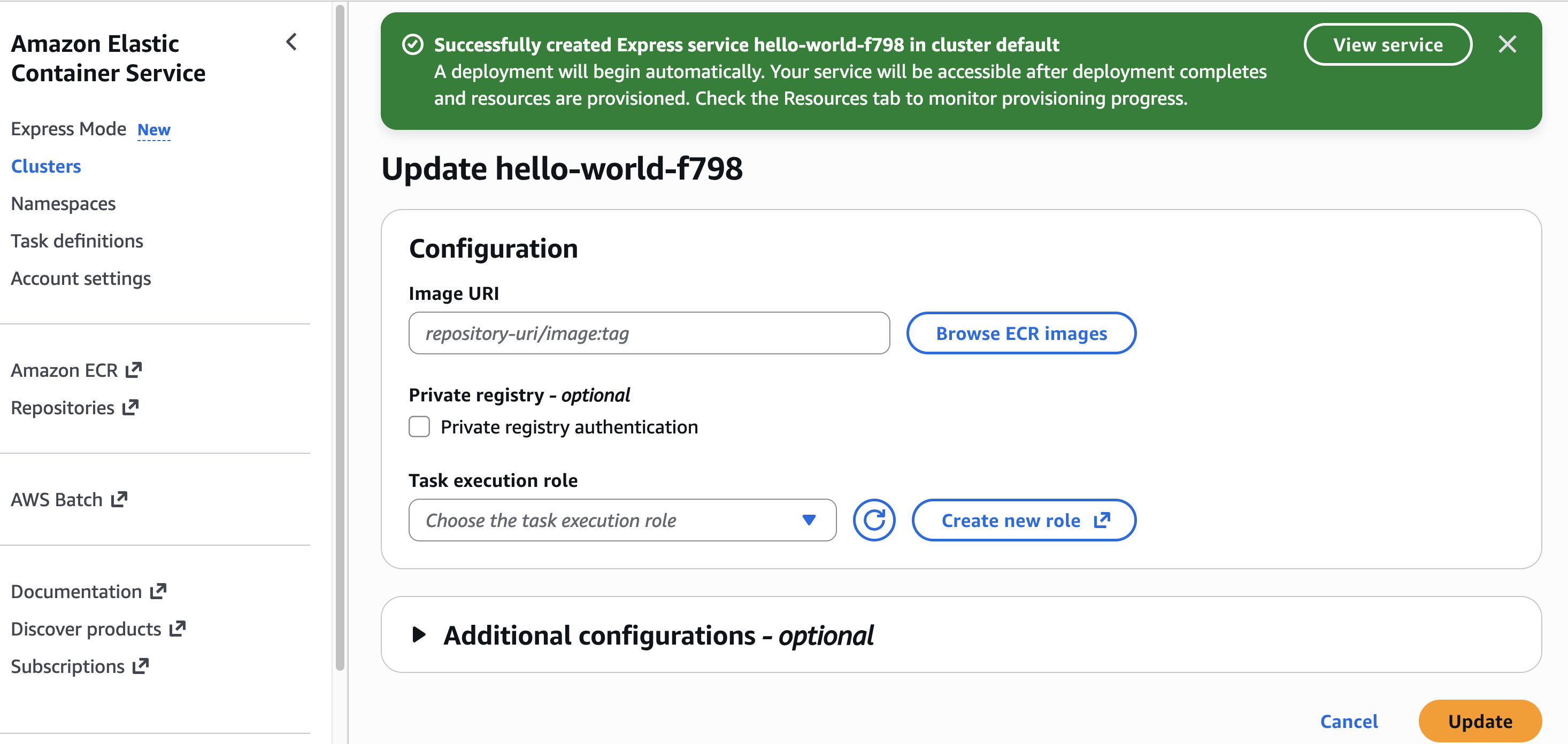
To update the application with a new container version, return to the console, select the Express service, and choose Update. The interface allows specifying a new image URI or adjusting resource allocations.
Alternatively, the AWS CLI can be used for updates:
aws ecs update-express-gateway-service \
  --service-arn arn:aws:ecs:us-west-2:[ACCOUNT_ID]:service/[CLUSTER_NAME]/[APP_NAME] \
  --primary-container '{
    "image": "[IMAGE_URI]"
  }'
This streamlined experience significantly reduces setup complexity, while still providing full access to all underlying resources for advanced configurations.
Additional things to know
Here are additional details regarding ECS Express Mode:
Availability – ECS Express Mode is available in all AWS Regions at launch.
Infrastructure as Code support – Users can leverage IaC tools such as AWS CloudFormation, AWS Cloud Development Kit (CDK), or Terraform to deploy applications using Amazon ECS Express Mode.
Pricing – There is no additional charge to use Amazon ECS Express Mode. Users pay only for the AWS resources created to launch and run their application.
Application Load Balancer sharing – The Application Load Balancer (ALB) created is automatically shared across up to 25 ECS services using host-header based listener rules. This significantly helps distribute the cost of the ALB.
Get started with Amazon ECS Express Mode through the Amazon ECS console. Learn more on the Amazon ECS documentation page.