Effortless Customization: Styling HTML Select Elements with `appearance: base-select`
Discover how to style HTML `<select>` elements professionally using `appearance: base-select` and new CSS features in Chrome 135. Learn to customize buttons, dropdowns, icons, and options with ease, enhancing user experience.
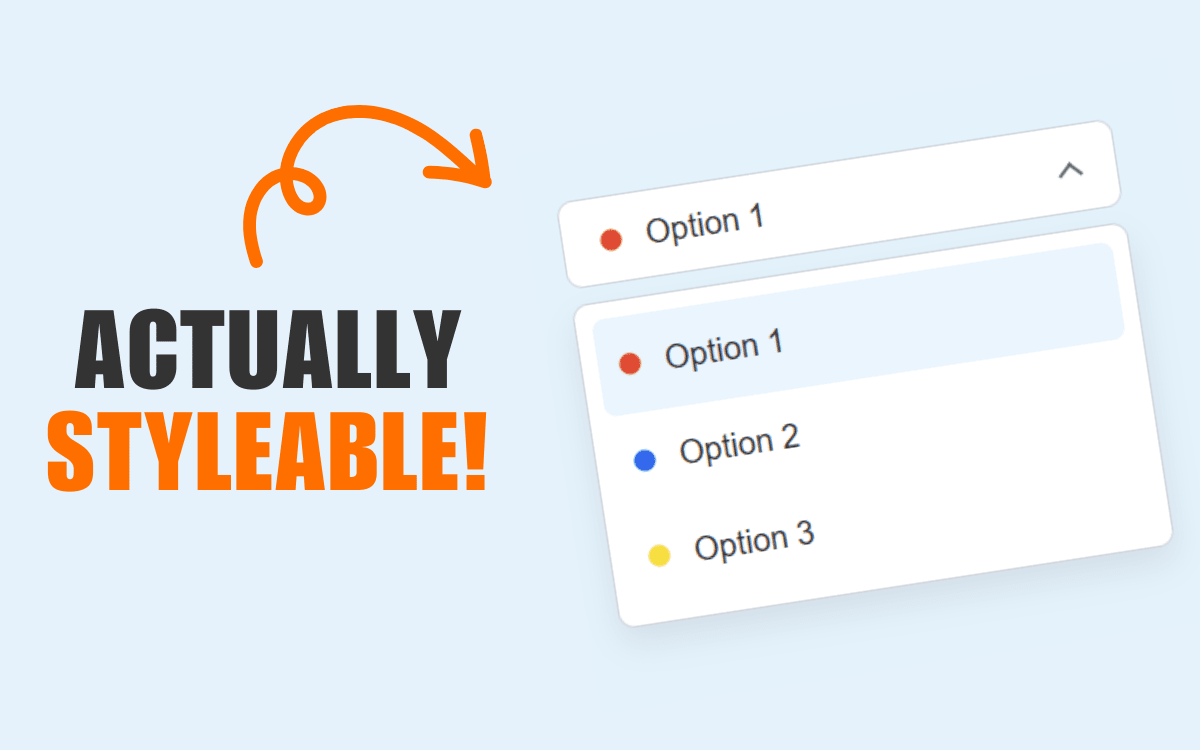
The <select> HTML element has historically presented significant challenges for styling. For a long time, operating system default styles made customizing <select> elements nearly impossible, often forcing developers to build entirely custom dropdown solutions or rely on external JavaScript libraries. Many developers have likely experimented with appearance: none and other common workarounds to achieve desired aesthetics.
This article explores how to effectively customize and style HTML <select> elements using the new appearance: base-select feature, along with other complementary CSS features introduced in Chrome 135.
Understanding appearance: base-select
appearance: base-select is a new CSS property that transforms a <select> element into a highly customizable state by removing its default operating system styling. This property can be applied to both the <select> element itself and its associated dropdown picker. However, it's crucial to note that you cannot style the picker without also applying appearance: base-select to the parent <select> element:
select,
::picker(select) {
  appearance: base-select;
}
This powerful property unlocks several key styling capabilities:
- Comprehensive Styling Control: Gain complete styling control over both the
<select>button and its dropdown picker. This includes the<selectedcontent>pseudo-element, which represents the content of the currently selected option displayed within the button. - Rich Content in Options: Embed rich content, such as images or SVGs, directly within
<option>elements. Browsers previously ignored such content. - Custom Dropdown Arrow Icons: Style or completely replace the default dropdown arrow icon using the
::picker-iconpseudo-element. - Conditional Styling: Apply conditional styling to selected (checked) options and their respective checkmarks using new pseudo-elements.
Let's delve into each of these capabilities in more detail.
Styling the Components
The Select Button
As the primary visible component, the selection button is frequently the focus of styling efforts. Once appearance: base-select is applied, the <select> button behaves like any other standard HTML element, allowing you to add padding, borders, shadows, background colors, and more.
select {
  appearance: base-select;
  background: #fff;
  border: 2px solid #ccc;
  border-radius: 6px;
  padding: 0.5em 1em;
}

select:hover {
  background-color: #0078d7;
}
Furthermore, you can style the content displayed inside the button using the new <selectedcontent> element. This represents the currently chosen option's content within the <select> button.
selectedcontent {
  /* add your styling here */
}
The Dropdown Picker
The entire dropdown menu, or "picker," can be targeted using the ::picker(<element>) pseudo-element.
::picker(select) {
  background: #f9f9f9;
  border: 1px solid #ddd;
  border-radius: 6px;
  box-shadow: 0 4px 8px rgba(0, 0, 0, 0.1);
}
The picker operates similarly to a popover and is layered above all other content on the page.
Note: This styling will only apply if the <select> element has appearance: base-select; applied.
The Picker Icons
With the ::picker-icon pseudo-element, you can style or entirely replace the dropdown's arrow icon. This can be combined with the :open pseudo-class to style the icon specifically when the picker is active.
select::picker-icon {
  content: "▼";
  color: #666;
  margin-left: 0.5em;
}

select:open::picker-icon {
  transform: rotate(180deg);
  transition: transform 0.2s ease;
}
Conditional Styling for Options
The "checked" or selected state of an option can now be directly targeted using option:checked.
option:checked {
  background: #0078d7;
  color: white;
}
Additionally, the ::checkmark pseudo-element allows you to target the checkmark icon displayed within the currently selected option.
option::checkmark {
  content: "✔";
  color: white;
  font-size: 0.9em;
  margin-right: 0.5em;
}
Demonstration
Here's a combined demonstration showcasing all the features discussed above:
The visual gap between the dropdown and the select button in the demo is created using the margin-block property.
Browser Compatibility
As of this writing, full support for the new appearance: base-select workflow and its associated pseudo-elements (like ::picker(select), ::picker-icon, and ::checkmark) is primarily available in Chromium-based browsers, specifically Google Chrome 135+ and equivalent versions of Microsoft Edge.
Conclusion
Mastering these new CSS features provides web developers with unprecedented control over the styling of HTML <select> elements, eliminating the need for complex custom implementations. For those interested in exploring more modern CSS techniques, consider investigating @starting-style for creating smooth entry transitions.