Empowering MCP Servers with Rich UI: Introducing mcp-use for Interactive Widgets
Discover mcp-use, an open-source framework enabling UI-rich experiences for MCP servers. Build interactive widgets like stock charts, overcoming traditional text-only limitations in LLM applications.
Multi-Agent Communication Protocol (MCP) servers, commonly used with platforms like Claude and Cursor, have traditionally been limited to text or JSON outputs, making it challenging to deliver rich, interactive user experiences such as dynamic charts or visual dashboards. For instance, displaying stock data as { "symbol": "AAPL", "price": 178.23, "change": "+2.45%" } is informative but lacks visual engagement.
While creating visual elements isn't technically impossible, developers often face the burden of writing duplicate boilerplate code. This typically involves defining a React component and then separately registering it as an MCP tool, leading to redundant schemas, manual prop mapping, and excessive registration logic.
This challenge is effectively addressed by mcp-use, a recently trending open-source, full-stack MCP framework. mcp-use simplifies development for MCP servers, MCP clients, and AI agents, enabling truly UI-rich experiences.
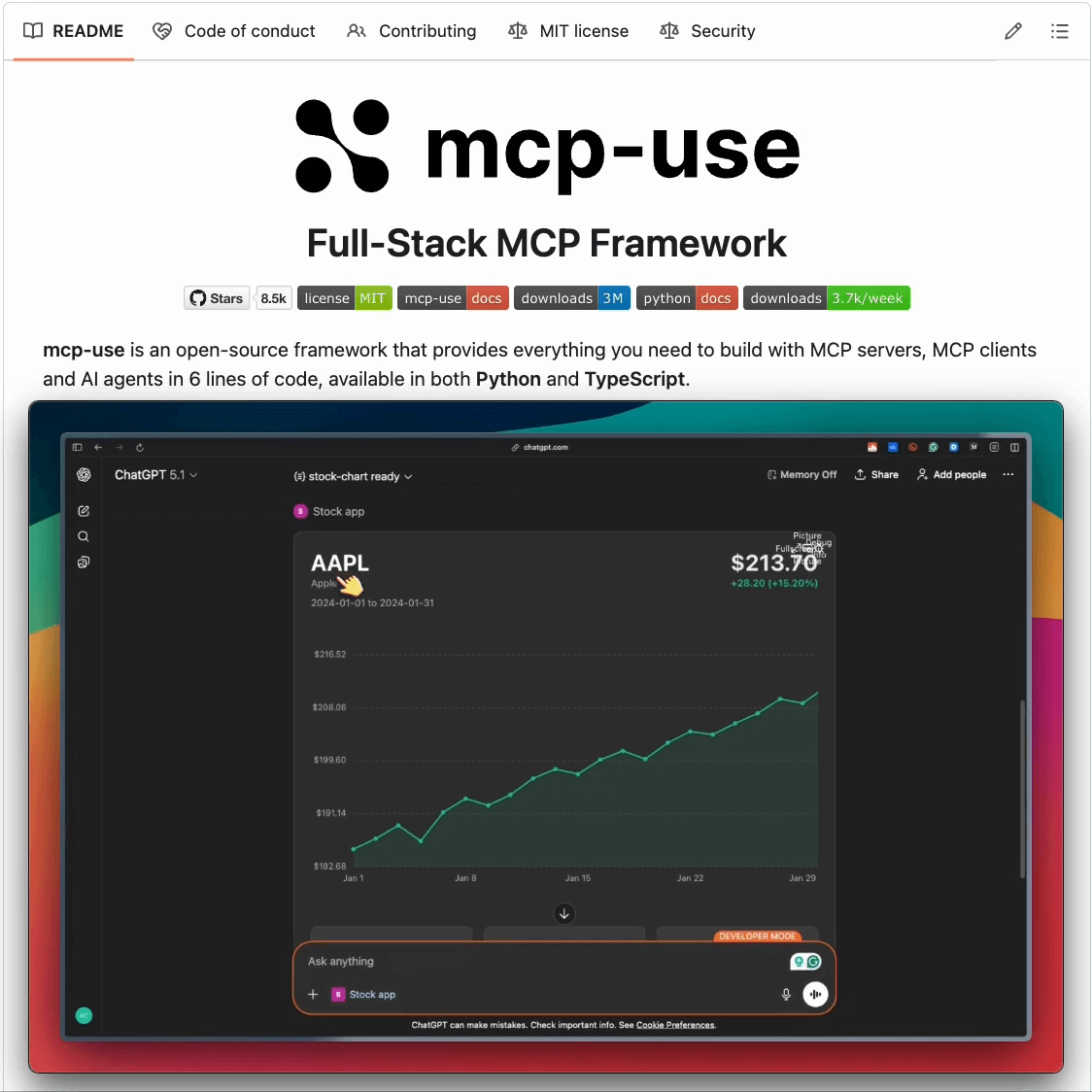
The mcp-use framework allows developers to create standard React components that automatically:
- Register as callable MCP tools for AI models like Claude and ChatGPT.
- Render as interactive widgets within ChatGPT.
- Benefit from the full React ecosystem, including frameworks like Tailwind, various libraries, and hooks.
- Support hot reloading for efficient development.
Let's walk through building an interactive stock chart widget to visualize historical closing prices.
Step-by-Step Widget Development with mcp-use
-
Project Initialization: Start by creating a new
mcp-useproject.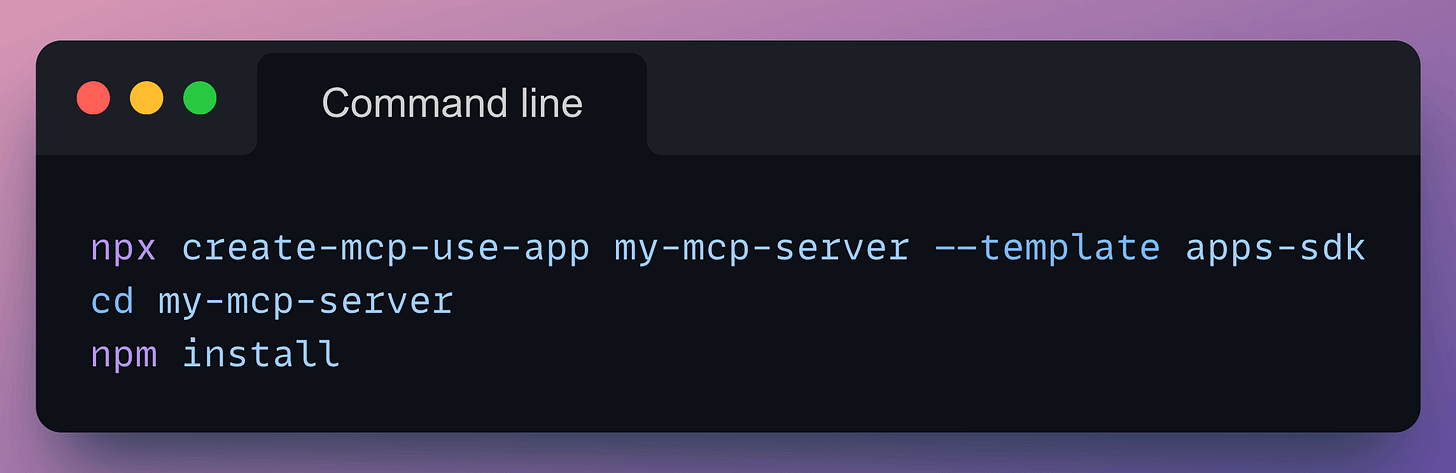 This command generates a project with a predefined directory structure.
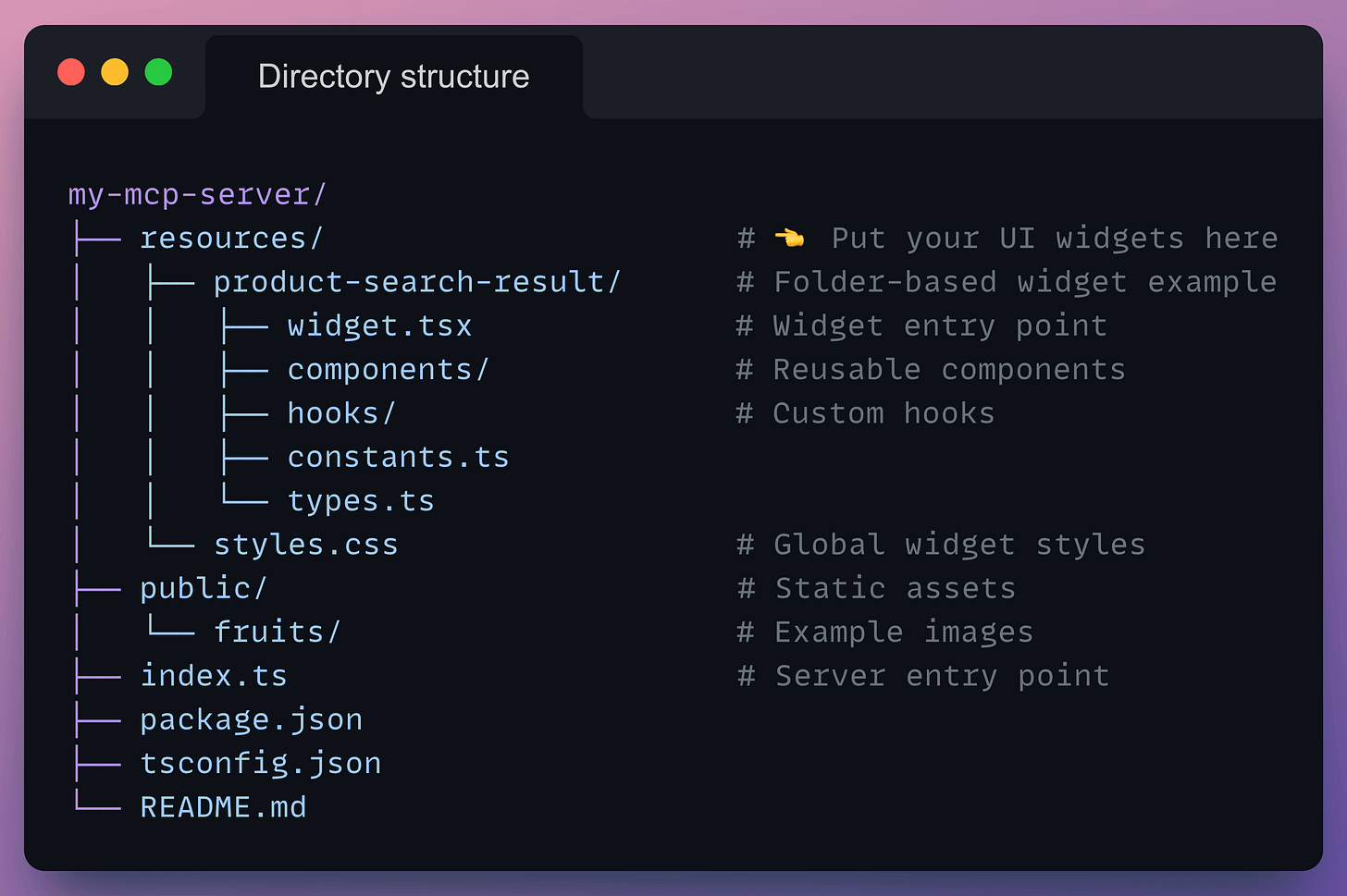 Each
Each .tsxfile placed in theresources/folder automatically becomes a widget, ready to be utilized by MCP clients to render tool outputs. For our example, we will define a new widget by creatingresources/stock-chart.tsx. -
Define Tool Schema: First, define a schema that specifies the arguments your MCP tool expects as inputs. The
.describe()calls are crucial for providing semantic meaning to each field, guiding the AI in correctly populating parameters.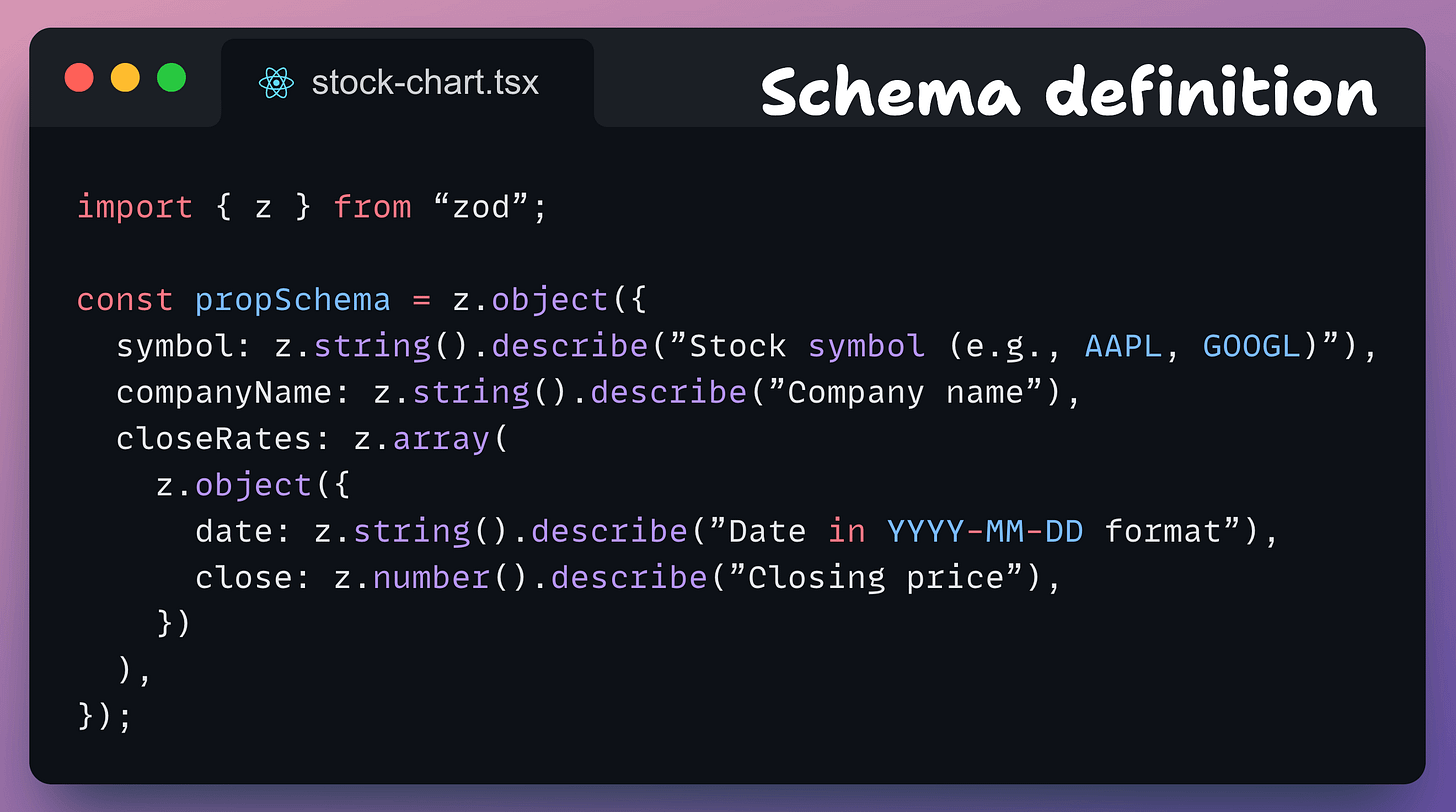
-
Automatic Tool and Resource Registration: Next,
mcp-useallows you to automatically register this schema as an MCP tool and resource with minimal code.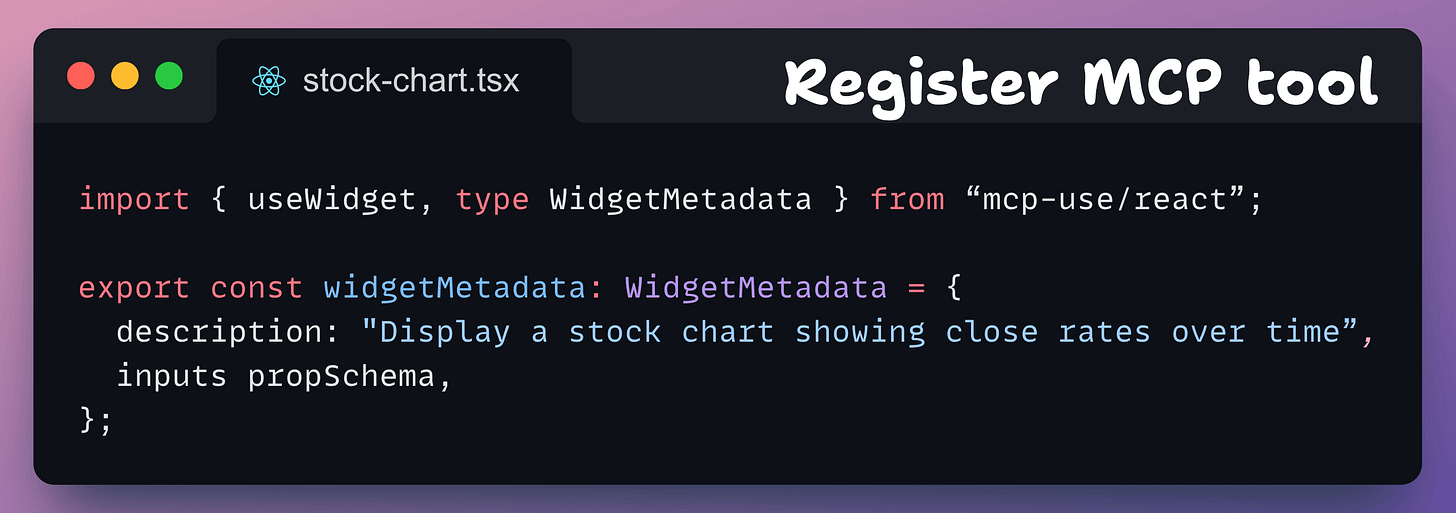
-
Build the React Component: Finally, construct your React component.
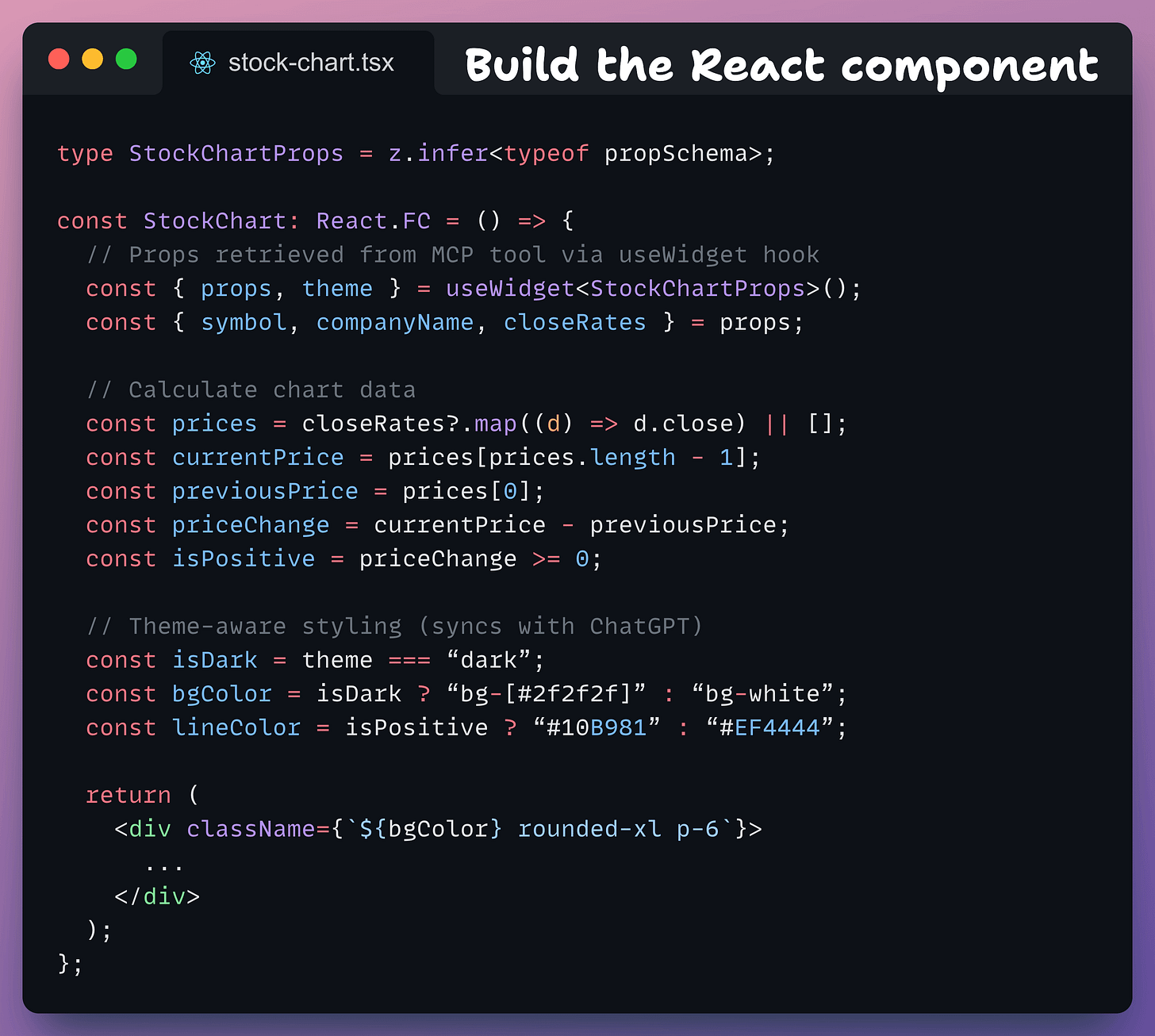 Key features within the component include:
useWidget(): Retrieves props passed directly from the MCP tool call, eliminating the need for traditional React props.theme: Automatically synchronizes with the conversational client's light/dark mode settings (e.g., ChatGPT's theme).- The rest of the code follows standard React development practices, allowing you to use any UI library or styling approach (Tailwind, styled-components, Material-UI, etc.).
Testing and Deployment
-
Start Development Server: Run
npm run devto start the development server. This command will open themcp-useinspector. Navigate to the "Tools" section, where you will findstock-chartautomatically registered. You can then test it with sample data.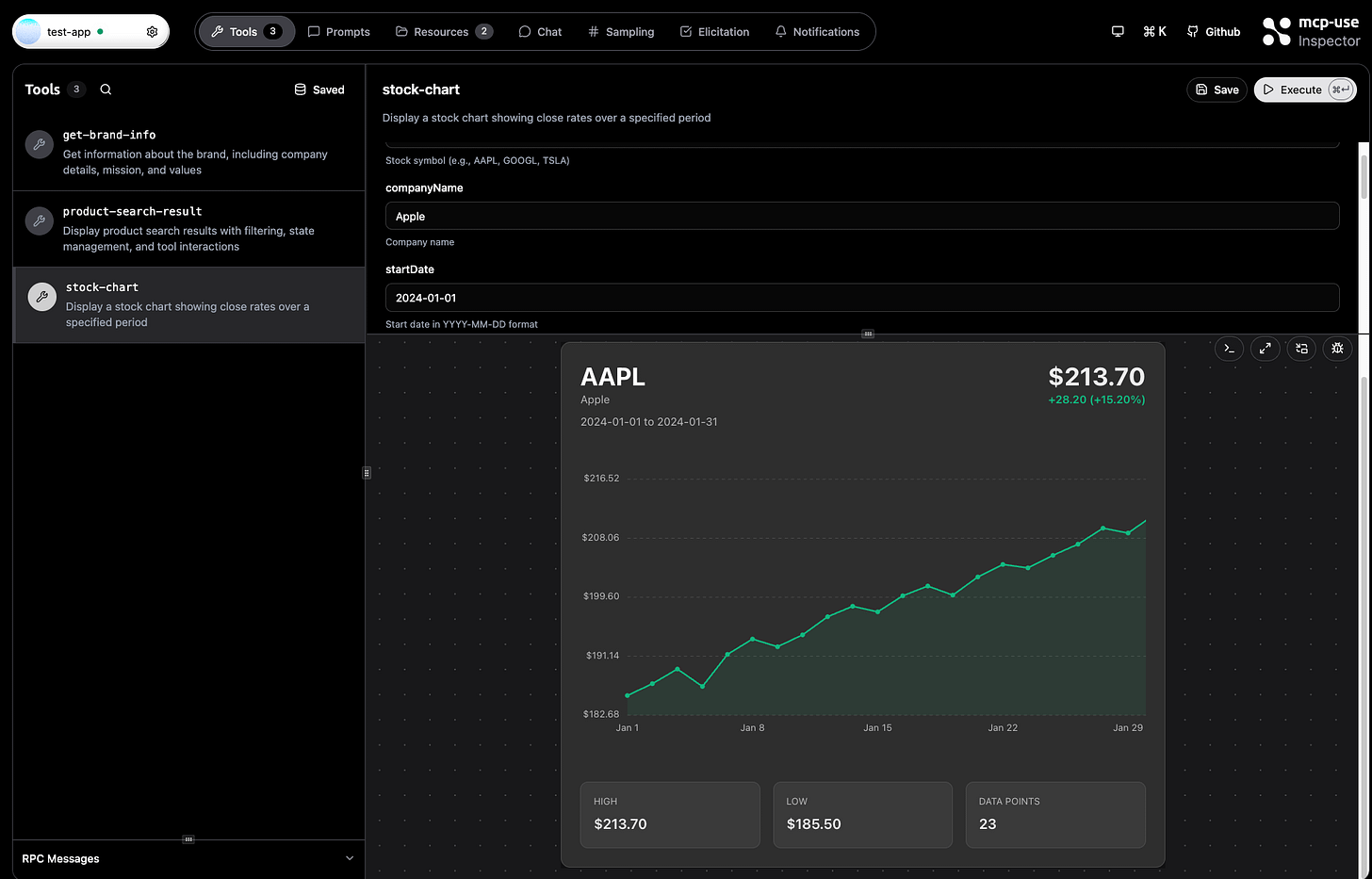
-
Deploy the MCP Server: Deploy your MCP server using
yarn deploy.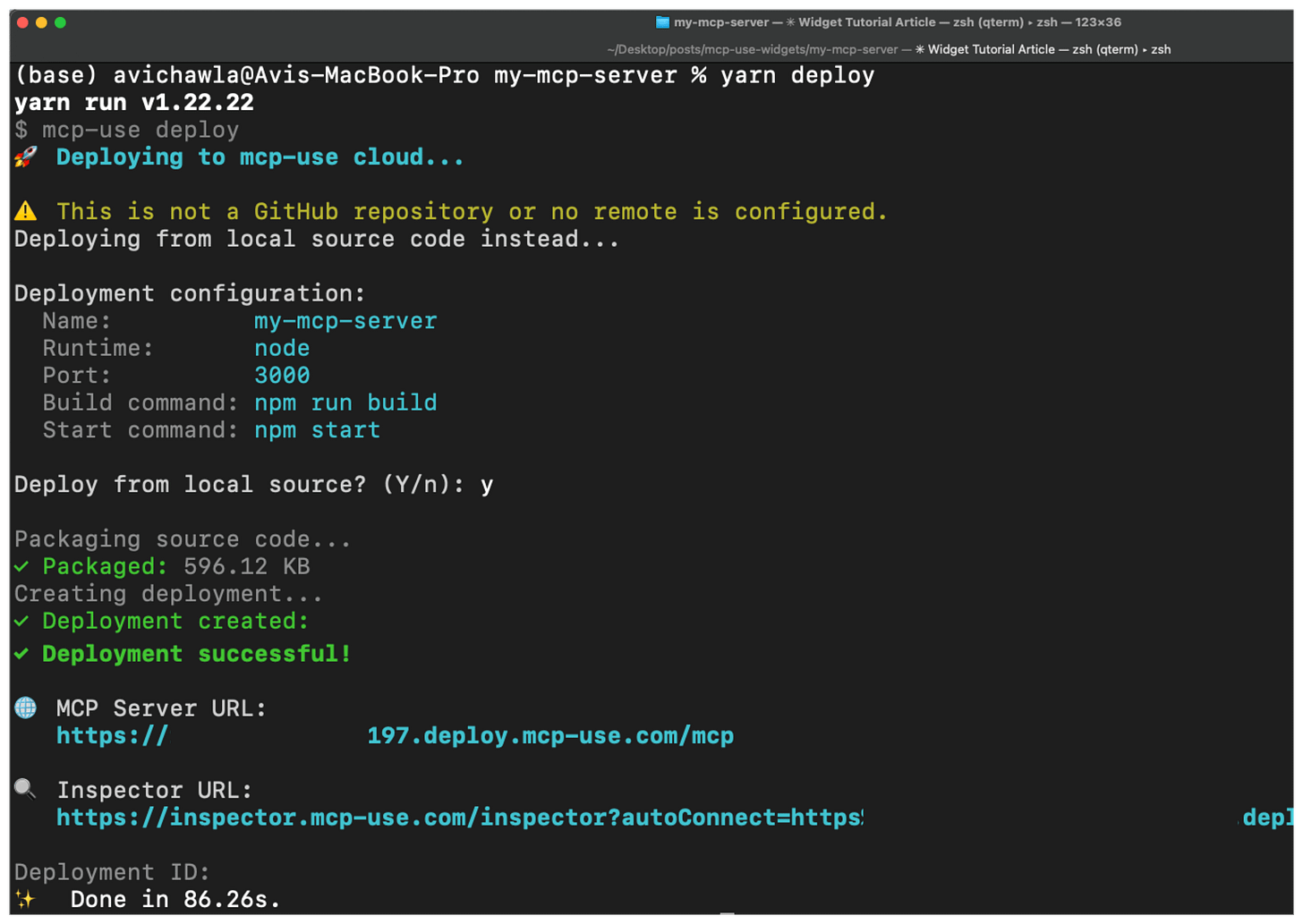
-
Integrate with ChatGPT: To enable UI elements in ChatGPT, follow these steps:
- Go to
Settings → Apps & Connectors → Advanced settingand enableDeveloper mode. - Navigate to
Settings → Apps & Connectors → Create.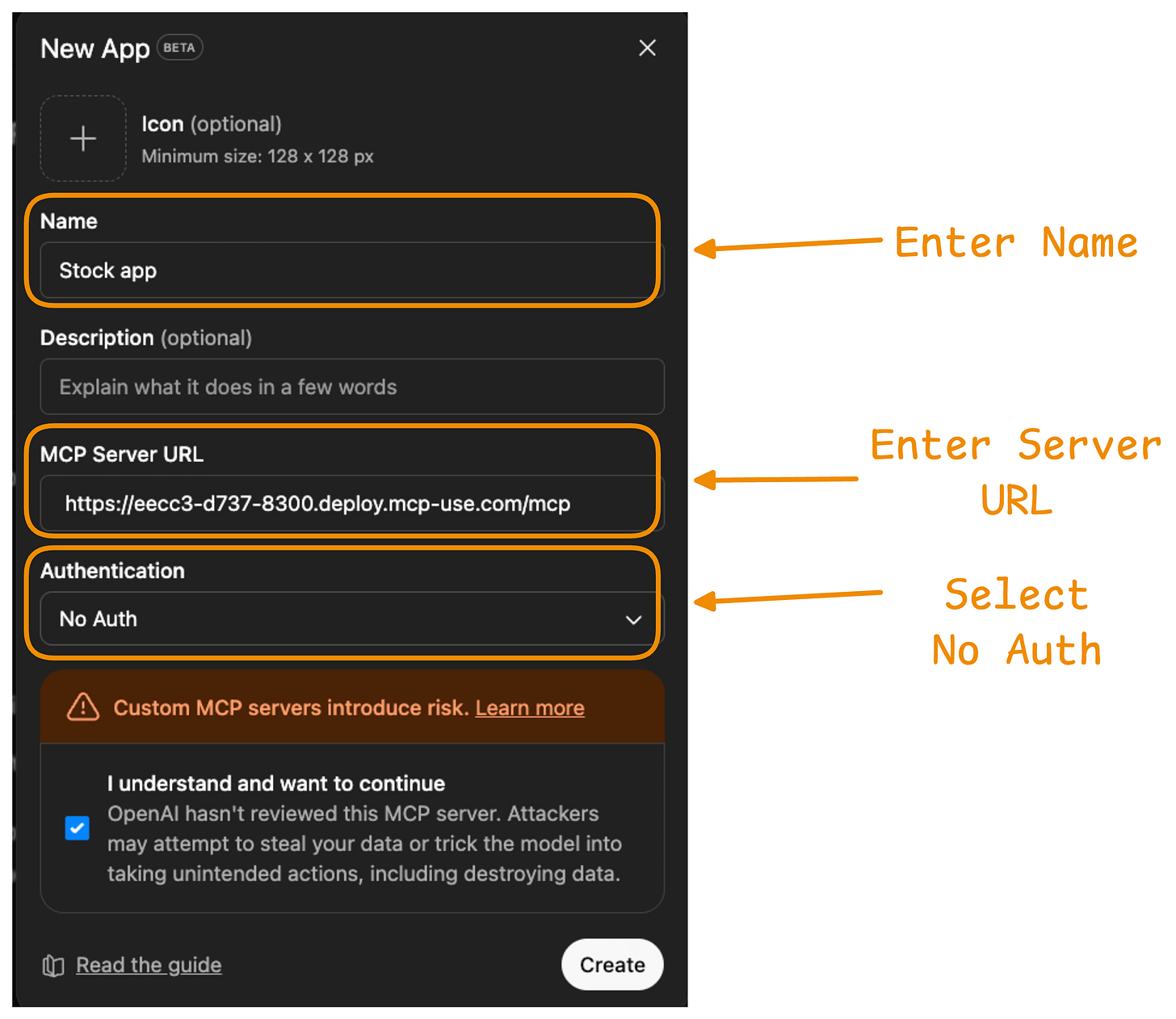
- Provide a name for your application.
- Enter the MCP Server URL obtained after deployment into the "Server URL" field.
- Select "No Auth" for authentication.
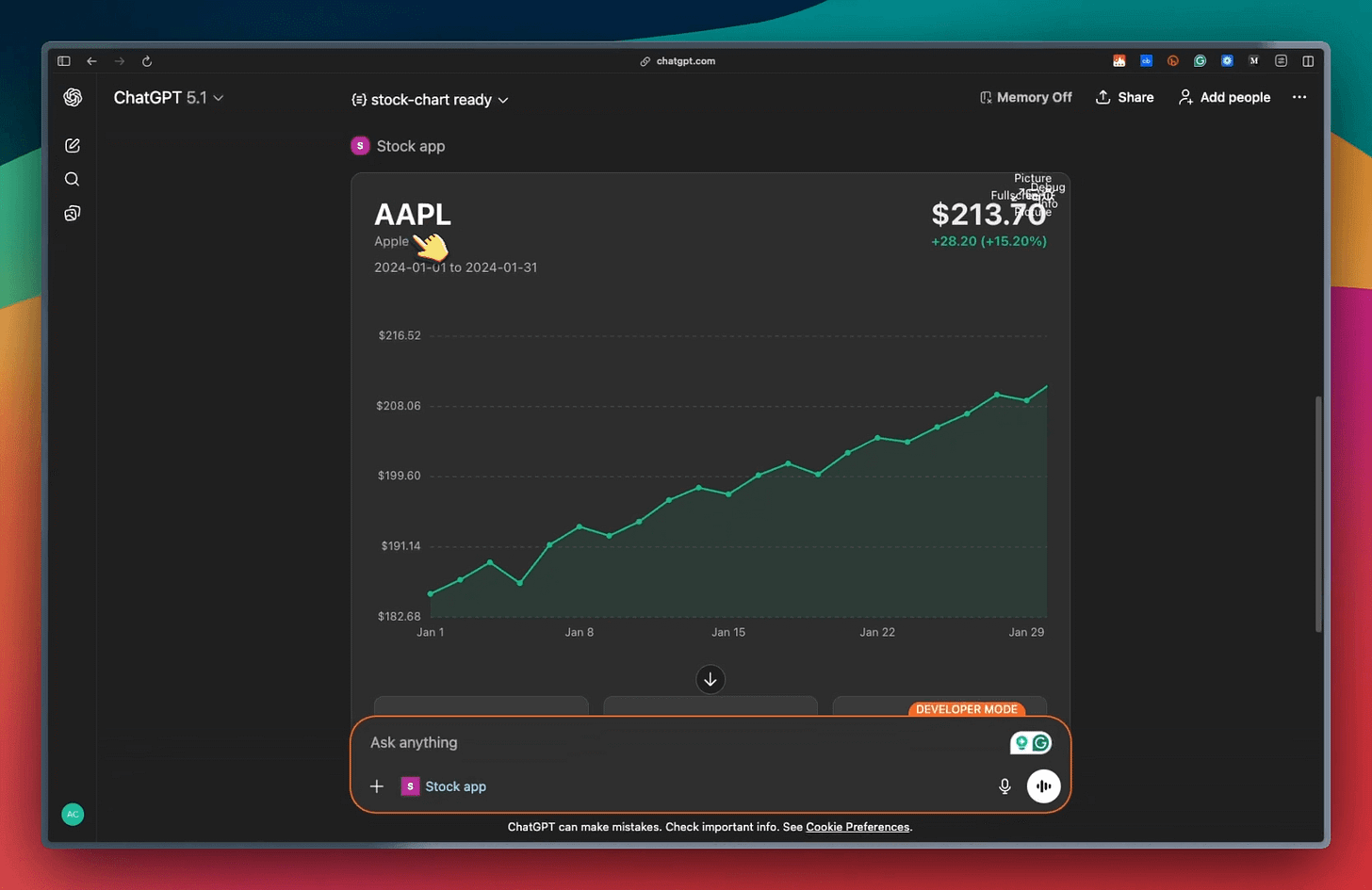
Once configured, ChatGPT will be able to display rich UI elements.
- Go to
Conclusion
The mcp-use framework eliminates significant boilerplate, allowing developers to focus on building UI widgets by simply dropping React components into the resources/ folder. It intelligently handles tool registration, prop mapping, and hot reloading.
Furthermore, UI Widgets created with mcp-use adhere to the MCP Apps standard, an initiative inspired by MCP-UI and OpenAI’s Apps SDK. This standard enables MCP servers to seamlessly display interactive UI elements within conversational MCP clients and chatbots, bridging the gap between traditional text-based AI interactions and dynamic visual experiences.