Google Sans Flex: A New Open-Source Variable Font for Enhanced Desktop Experience
Discover Google Sans Flex, an open-source variable font designed by David Berlow. Learn about its five axes, benefits for high-resolution screens, and how to install it on Linux systems.

For anyone who spends significant time in front of a computer, the choice of font is more critical than often realized. A well-selected font can significantly reduce eye strain, enhance readability, and drastically improve the overall desktop experience.
While I personally prefer Inter on my Fedora daily driver and rarely deviate, font preference is highly individual. Some users favor rounded styles, while others opt for sharp, clean lines. Providing diverse options is crucial, as the ultimate choice rests with the user and their visual comfort.
In exciting news, Google has recently open-sourced a compelling new font option worth exploring.
Google Sans Flex: An Overview
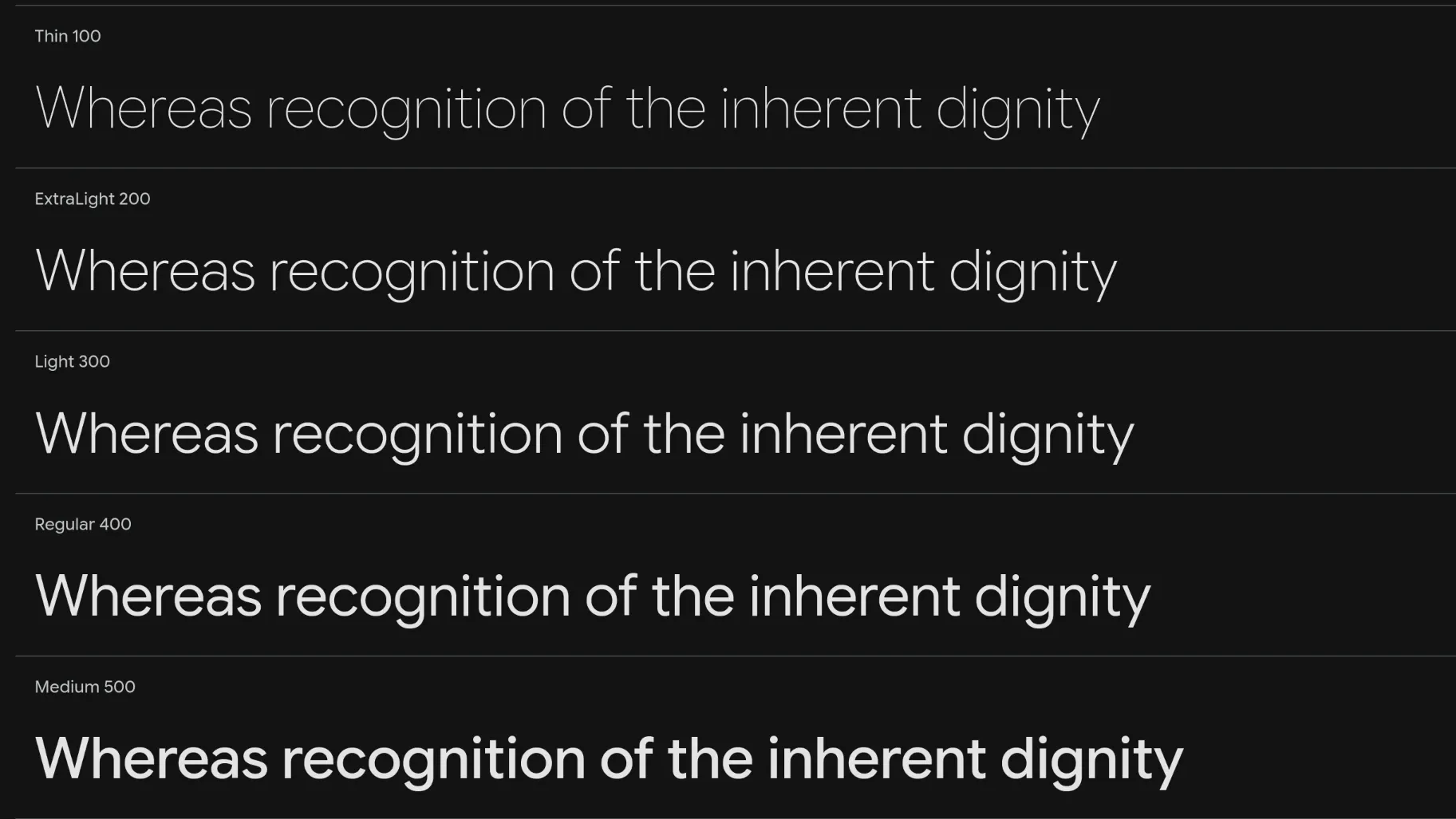
Google Sans Flex, released under the SIL Open Font License, is an open-source font positioned as Google's next-generation brand typeface. It was meticulously designed by David Berlow.
Sans Flex distinguishes itself as a variable font, incorporating five distinct axes: weight, width, optical size, slant, and rounded terminals. This innovative design allows a single font file to contain multiple styles, offering a wide range of aesthetic variations from a single download. Google developed this font to perform optimally across diverse screen sizes and modern operating systems, ensuring crisp rendering on high-resolution displays with fractional scaling. Essentially, a single Sans Flex file can replace numerous individual font files, streamlining font management.
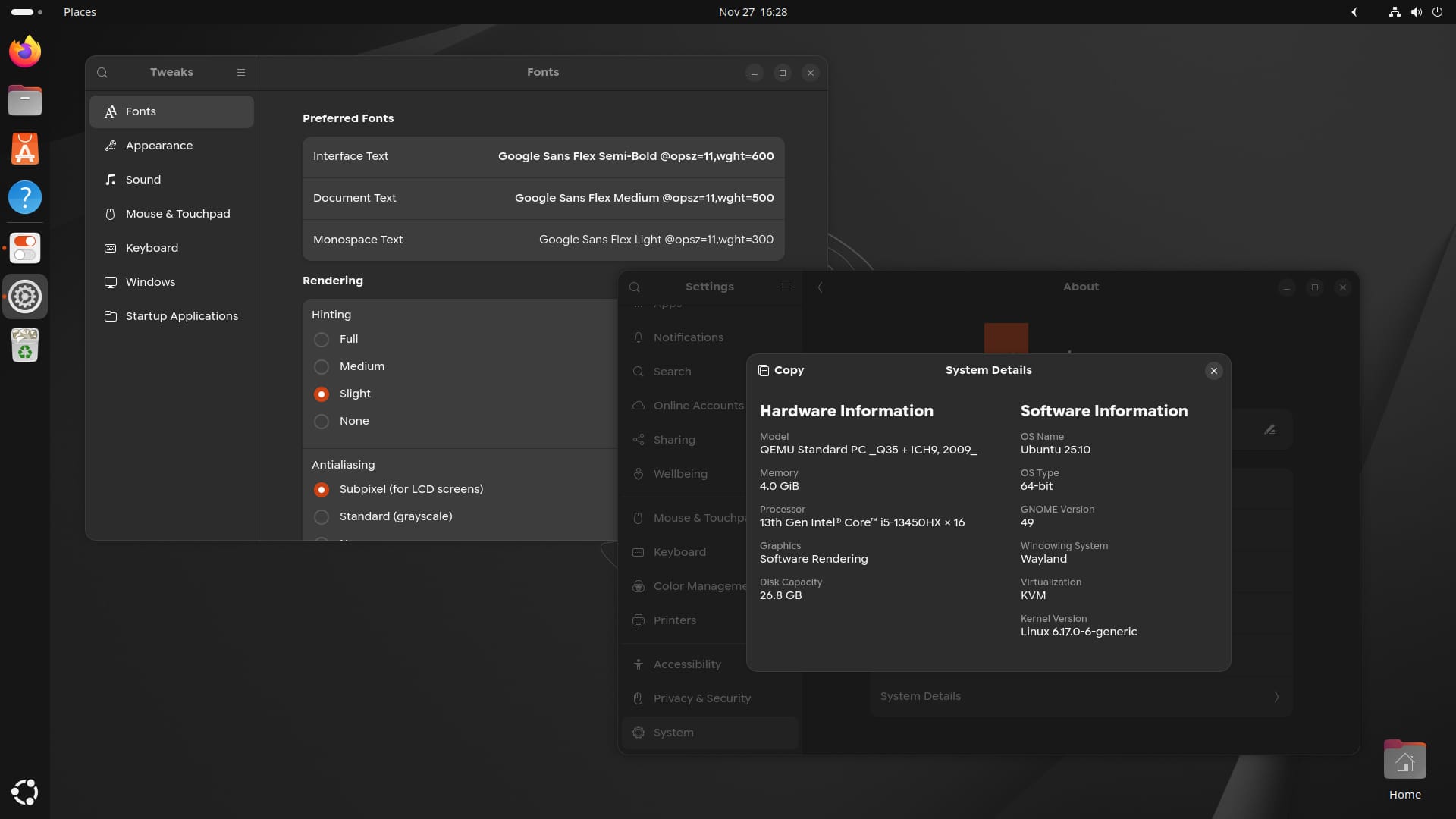
The image above demonstrates the font in use, applied system-wide via GNOME Tweaks.
How to Get Google Sans Flex
The font file can be downloaded directly from the official website. Once downloaded, you can easily install it on Ubuntu or any other Linux distribution by following our comprehensive installation guide.
It's important to note that the advanced variable font features may not be fully functional in current Linux desktop environments. When installed system-wide, you might only be able to utilize the regular style.
Should you require assistance or have any questions, our supportive community forum is available to help.
Suggested Reading:
If you're looking to install additional fonts on your Linux system, including Ubuntu, refer to our detailed screenshot tutorial:
How to Install New Fonts in Ubuntu and Other Linux Distros
Wondering how to install additional fonts in Ubuntu Linux? Here is a screenshot tutorial to show you how to easily install new fonts.